
Audit Details
12131I. Function Overview
The audit details page provides in-depth management and operational features for specific audit projects. Users can upload and download audit files, perform detailed task assignments, and execute searches and other key operations on this page, ensuring the smooth progress of the audit work.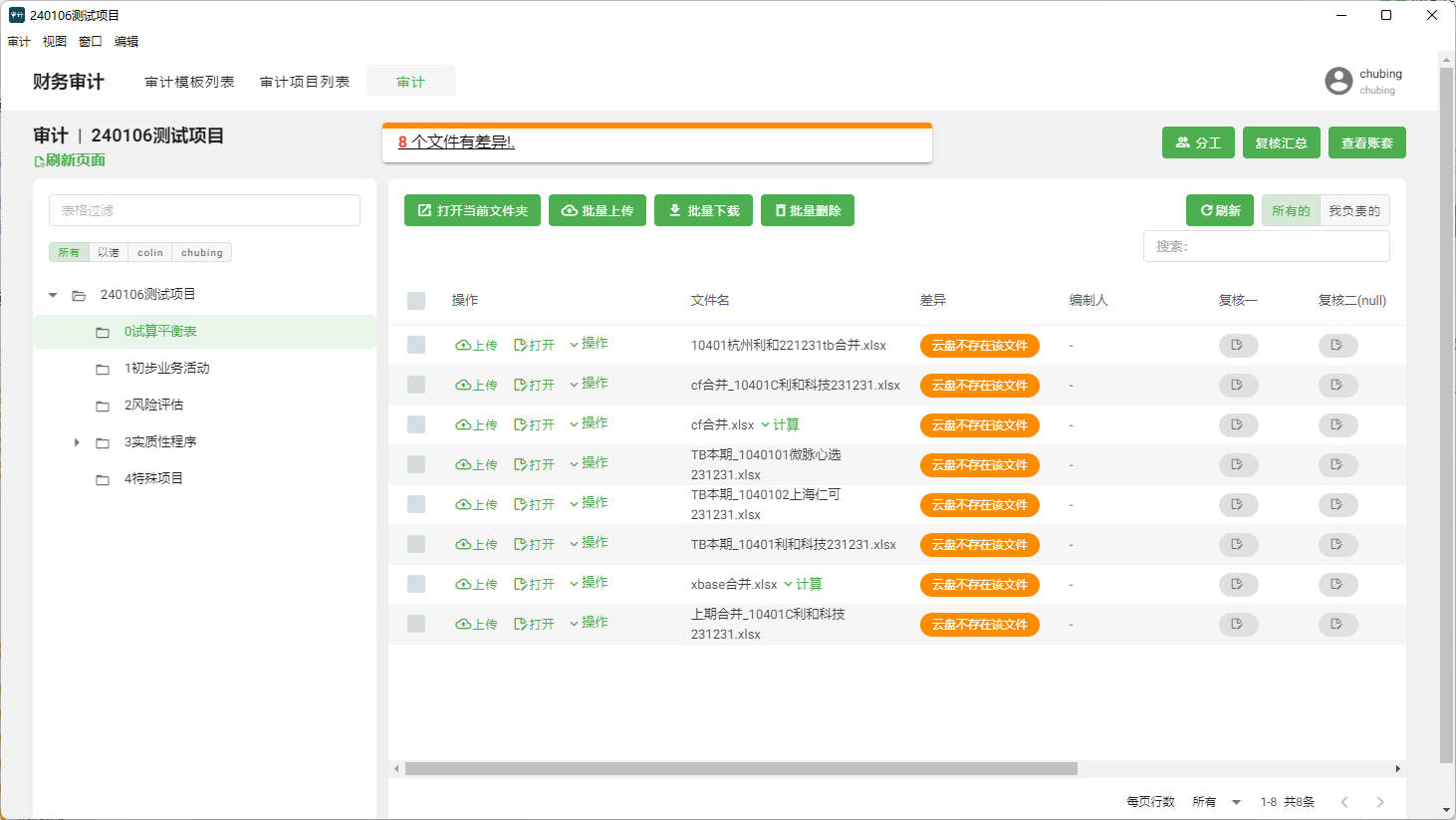
II. Function Entry
After logging into the software, users should first click on the 【Audit Project List】 menu at the top to enter the audit project management page. Then, by selecting and clicking the 【Audit】 button for a specific project, users can access the audit details page for that project.
III. Function Details
1. Pulling Audit Packages
Users can pull audit packages from the system or other sources, which typically contain financial data and other important information related to the audited entity. Once pulled, this information will be directly imported into the current audit project for subsequent auditing use.
2. Uploading & Downloading Audit Files
On the audit details page, users can easily upload and download files related to the audit project. This functionality is crucial for sharing materials, preserving work results, and collaborating with other team members.
3. Audit File Calculations
This feature allows users to perform calculations and processing on audit files, including adjusting entry summaries, importing prior period data, and importing audit project information. These calculations help users analyze financial data more accurately, improving the efficiency and accuracy of the audit work.
4. Audit Project Structure
The page will display audit files and corresponding auditors under the relevant folders in a hierarchical manner. This structured presentation helps users clearly understand the overall progress of the project and the responsibilities of each part.
5. Review Summary
After completing the preliminary audit work, users can use the review summary feature to conduct a final check and confirmation of the audit results. This step is crucial for ensuring the quality and accuracy of the audit work.
IV. Precautions
- When uploading audit files, please ensure that the format and content of the files meet system requirements to avoid data processing errors.
- When performing calculations on audit files, please carefully verify and adjust the data to ensure the accuracy of the calculation results.
- Regularly save and back up audit files to prevent data loss or damage.
- During the review summary phase, be sure to carefully check all data and conclusions to ensure the comprehensiveness and accuracy of the audit work.
V. Frequently Asked Questions and Answers
Q: How can I ensure the accuracy and completeness of the uploaded audit files?
A: Before uploading audit files, please make a local backup and carefully check whether the content and format of the files meet the requirements. After uploading, you can preview and verify the files in the system to ensure their accuracy and completeness.
Q: What should I do if I encounter problems during the audit file calculations?
A: If you encounter issues during the audit file calculations, first check whether the data format and settings are correct. If the problem persists, it is recommended to contact the system support team or refer to relevant help documents for solutions.
Q: How can I view and modify the assigned auditors?
A: In the corresponding section of the audit project structure, users can view and modify the assigned auditors. By clicking the edit button after the relevant file or folder, adjustments and assignments of personnel can be made.