
What is Jianghu Panel
120071. Concept Overview
Jianghu Panel is an open-source server management software that helps you easily manage servers, including installation, configuration, monitoring, and maintenance. Additionally, it integrates multiple commonly used services and tools, such as Node.js, MySQL, file management, website management, etc., enabling you to quickly set up web servers and database servers.
2. Overview of Common Features
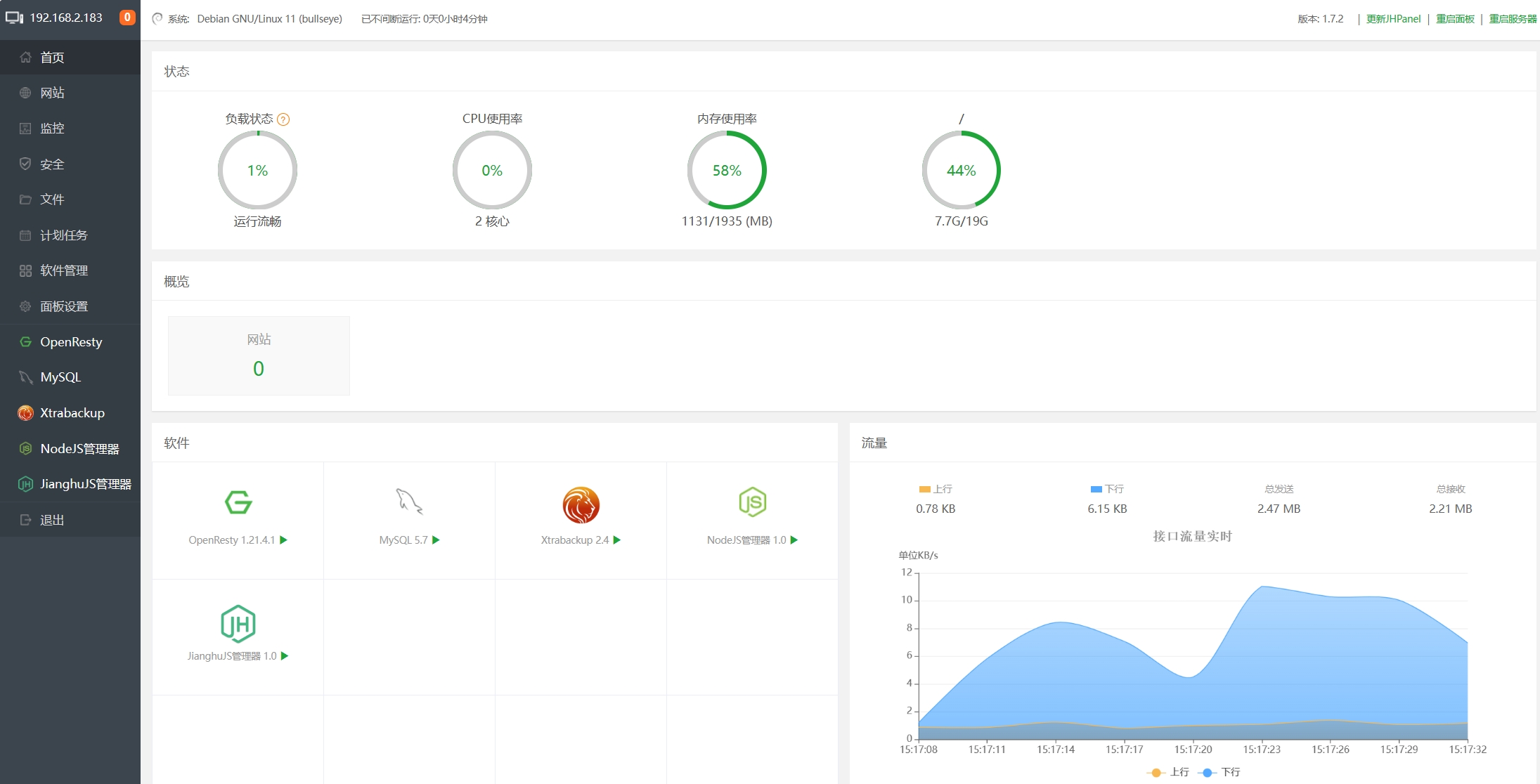
Home:
Provides a comprehensive overview, where users can clearly understand the server's operating status through intuitive charts and metrics on this page. This includes load status, CPU usage, memory usage; the number of websites; installed plugins; traffic usage, etc.Websites:
By selecting "Websites" in the left sidebar, you can see a list of all websites deployed on this server. You can create, manage, and delete websites here.Monitoring:
Offers detailed information on server resource usage, including resource utilization rates, load details, historical CPU and memory performance, as well as disk I/O and network I/O traffic usage.Files:
Jianghu Panel provides functionality for managing the file system on the server. By selecting "Files" in the left sidebar, you can manage server files in this interface, with a navigation bar at the top and a file directory below. The file management features allow you to perform basic operations such as downloading, uploading, copying, deleting, and renaming server files.The most important directory in Jianghu Panel is the www directory, which includes the main program of Jianghu Panel, the code for various websites and services, server data backups, and other important content.
Click to enter the wwwroot directory, where you can try creating new directories, blank files, and attempt operations such as cut, copy, and paste.
Security:
The security page of Jianghu Panel provides comprehensive server security configuration features, including SSH port management, firewall settings, Ping disablement, and logs of system operations, offering users powerful security management tools.Scheduled Tasks:
Provides flexible scheduled task management features, allowing users to customize task types, execution cycles, and custom scripts as needed. Users can edit or delete tasks, view task execution logs, and achieve customized operations and periodic execution of tasks.Software Management:
Click on the left sidebar [Software Management] to enter the software management page. In this interface, you can install/uninstall plugins, set directory display, configure plugins, and perform other operations.
Note: You must enable "Set Directory Display" for installed plugins to see the corresponding plugins in the left sidebar. Plugins that do not have directory display enabled will not appear in the left sidebar.
- Panel Settings:
The settings feature provides multiple personalized configuration options, allowing users to set the panel alias, server IP, port, and perform security settings, including binding domain names, panel SSL configuration, BasicAuth authentication service, API interface configuration, email notifications, etc., offering users flexible panel management and security configuration options.