
Project Details
12137I. Function Overview
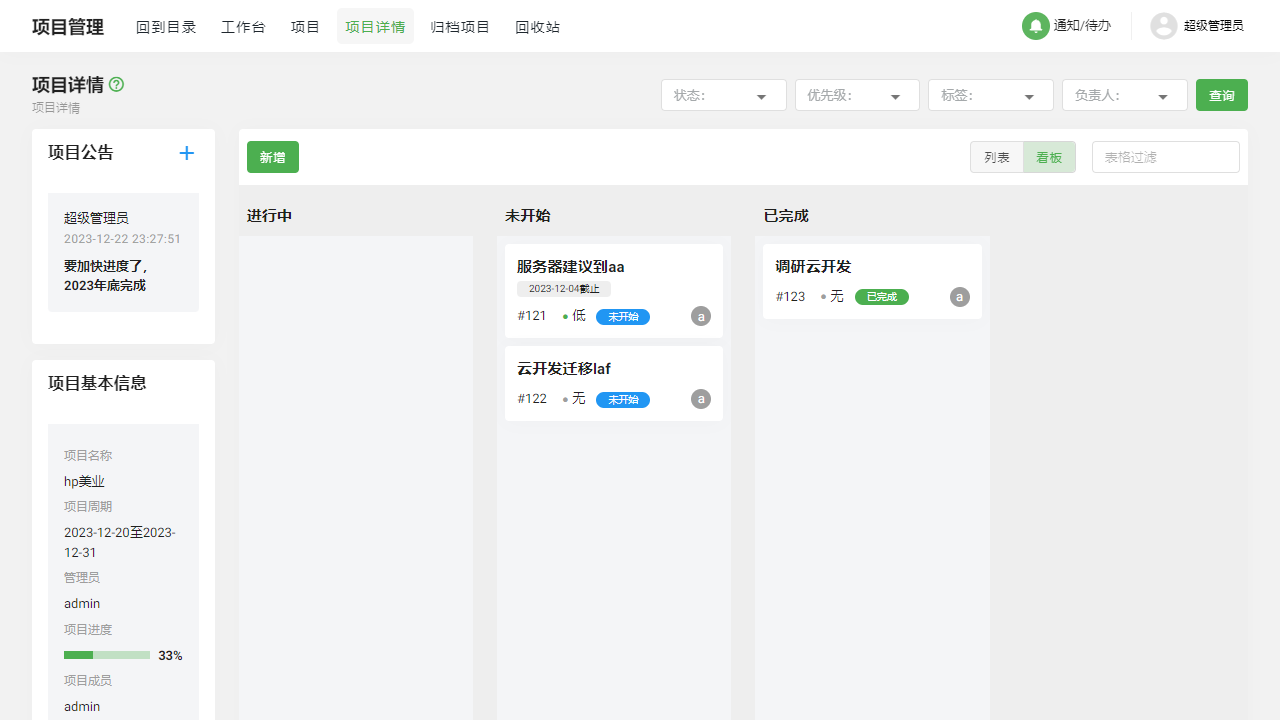
The project details page provides users with a comprehensive view to view and manage various aspects of the project. Here, users can browse project announcements, basic information, and the task list. In particular, the task list can be flexibly displayed in either list or board mode, and supports filtering tasks by status, priority, and other criteria, helping users efficiently manage and track project progress.
II. Function Entry
Users first enter the project list page by clicking on the [Projects] option in the top navigation bar of the system, and then select and click on a specific project to access the corresponding [Project Details] page.
III. Function Details
1. Project Announcements
At the top of the project details page, there is an announcement area where users can add or view existing project announcements. Announcements are an effective way to communicate important information or updates to project members.
2. Basic Project Information
On the project details page, users can view basic information about the project, such as project name, project description, start date, estimated end date, etc. This information provides users with an overall overview of the project.
3. Task List
The task list is the core part of the project details page, where users can view and manage all tasks related to the project. The task list supports two display modes: list mode and board mode. List mode presents task information in a clear table format, making it easy for users to quickly browse and find tasks; while board mode uses a card layout to more intuitively display the progress and status of tasks.
In the task list, users can also perform quick editing operations, such as changing task status, priority, etc., to improve task management efficiency.
4. Task Filtering
To help users efficiently locate specific types of tasks, the project details page provides a task filtering function. Users can filter the task list based on task status (e.g., to-do, in progress, completed, etc.), priority (high, medium, low), tags, and responsible persons, allowing them to quickly find tasks that need attention or action.
IV. Notes
- When editing task information, please ensure that the entered data is accurate to avoid misleading project progress.
- Regularly check project announcements and basic information to stay updated on the latest developments and updates of the project.
- When using the task filtering function, please pay attention to selecting appropriate filtering criteria to obtain the most accurate task list view.
V. Frequently Asked Questions
Q: How do I add a project announcement?
A: In the announcement area of the project details page, you will find a button or entry for "Add Announcement." Click this button, follow the prompts to enter the announcement content, and confirm to publish it.
Q: Can I change a published project announcement?
A: Generally, published project announcements can be edited or deleted. The specific method may vary by system, but you can usually find options to edit or delete in the announcement list or details.
Q: What are the task statuses in the task list?
A: Task statuses typically include to-do, in progress, completed, etc. Different project management systems may offer different status options, and you can choose and adjust them based on actual needs.
Q: How do I use the task filtering function?
A: At the top or side of the task list, you will usually find options or buttons for task filtering. Click these options, select the filtering criteria you want (e.g., status, priority, etc.), and then confirm to apply the filter to see the task list that meets the criteria.**