
Task
12134I. Function Overview
The task management feature is an important function in the Jianghu OA system, aimed at helping enterprises or teams efficiently manage and track various tasks. Users can easily create new tasks, assign responsible persons, add reference personnel, and perform operations such as commenting, uploading attachments, and adding subtasks within tasks, thereby achieving comprehensive recording of task information and efficient team collaboration.
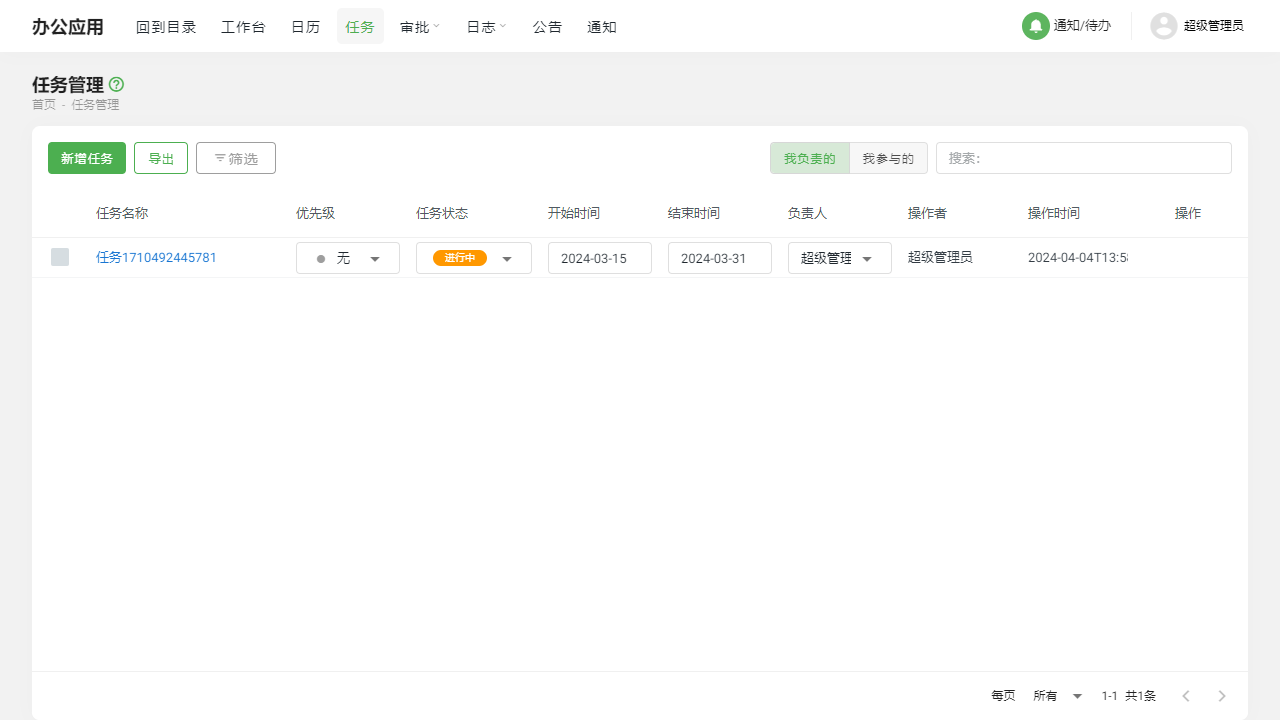
II. Function Entry
Users can quickly access the task management-related pages by clicking the [Tasks] option in the top navigation bar of the system to start creating, viewing, or managing tasks.
III. Detailed Function List
Add New Task
- Users can conveniently create new tasks, setting key information such as the task title, content, and due date.
- Tasks can be assigned to specific responsible persons to ensure that each task has a clear owner.
View Task Details
- Users can view detailed information about the task, including task content, responsible person, reference personnel, due date, etc.
- Task content supports markdown format, making it easier for users to perform rich text editing.
- Users can add subtasks within the task to refine the work content.
- Supports attachment upload functionality, allowing users to add relevant documents.
- Provides a commenting feature to facilitate communication among team members.
Delete Task
- For completed or no longer needed tasks, users can choose to delete them to keep the task list tidy.
Export Task
- Users can export task information for archiving, analysis, or reporting purposes.
IV. Notes
- When adding a new task, please ensure that accurate task information is filled in, including title, content, responsible person, etc., so that team members clearly understand the task requirements.
- When uploading attachments, please pay attention to file size and format restrictions to avoid uploading oversized or unsupported file formats.
- Before deleting a task, please confirm whether the task has been completed or is indeed no longer needed to prevent the accidental deletion of important information.
- When exporting tasks, please choose the appropriate export format and content as needed for subsequent data processing and analysis.
V. Frequently Asked Questions and Answers
Q: How do I add a subtask?
A: On the task details page, you can find the option to add a subtask. Click it, fill in the title and content of the subtask as prompted, and then save it.
Q: Is there a size limit for uploaded attachments?
A: Yes, there is usually a size limit for uploaded attachments. The specific size limit may vary depending on system settings, please refer to system prompts or consult the administrator for details.
Q: Can deleted tasks be restored?
A: Deleted tasks typically cannot be restored directly. If you accidentally delete a task, it is recommended to contact the system administrator or technical support team for assistance. Additionally, regularly backing up data is a good practice to prevent data loss.
Q: What formats are supported when exporting tasks?
A: When exporting tasks, multiple formats are usually supported, such as CSV, Excel, etc. The specific supported formats may vary depending on the system version, please check the list of available formats during export.