
Purchase Return Order⓵
12075Create Purchase Return Order
Function Entry: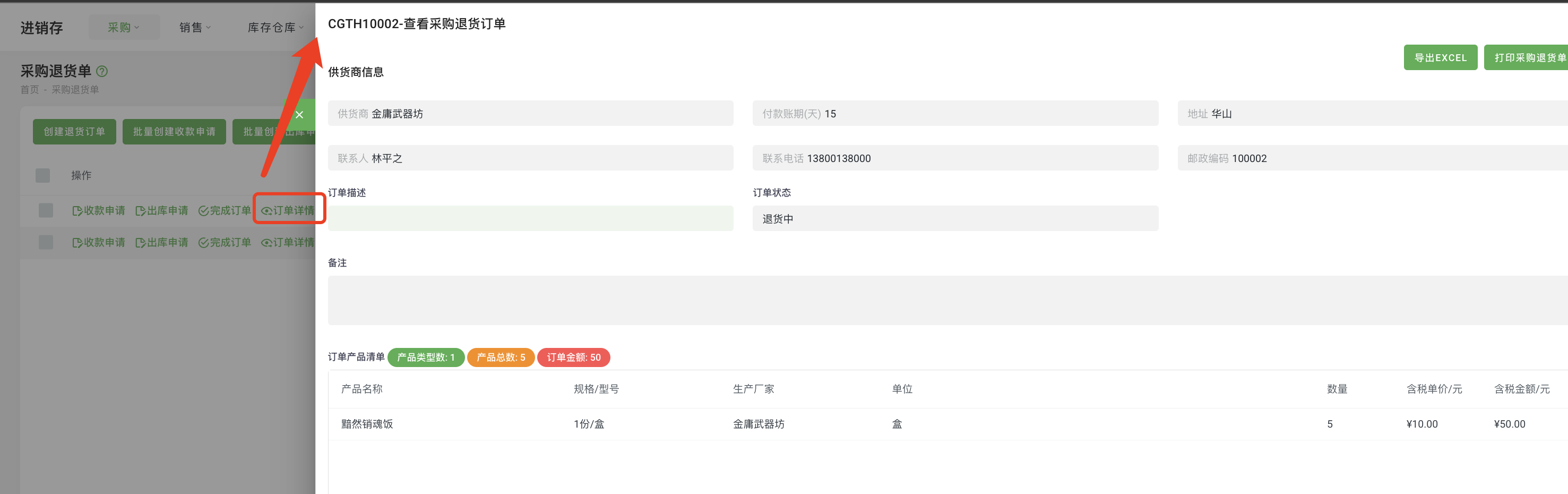
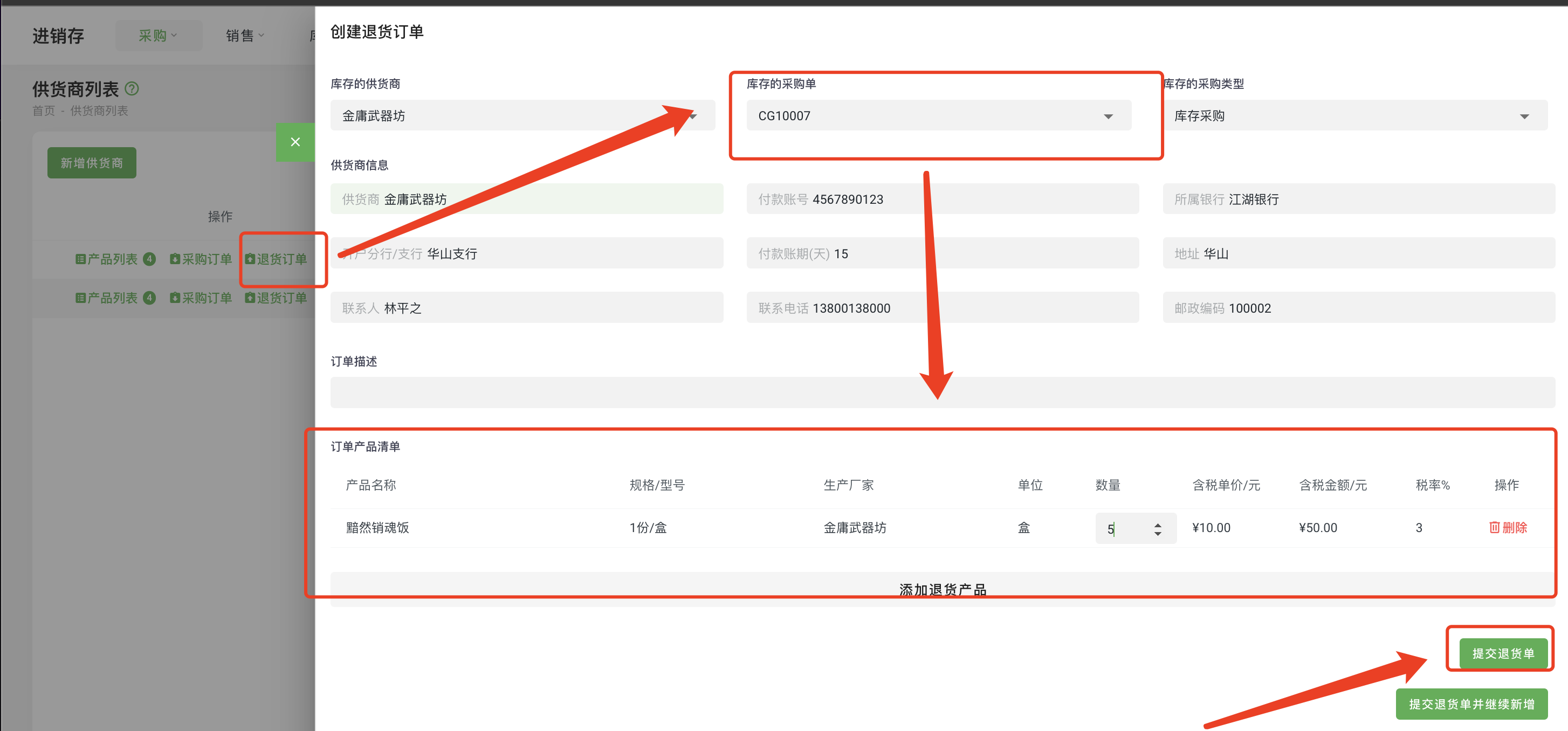
Operation Steps:
- Select "Purchase - Supplier List" from the menu to enter the supplier list.
- Click on the "Return Order" of a specific supplier to open the order creation window.
- Add the list of products to be returned, then click "Submit Return Order".
- Then select "Purchase - Purchase Return Order" from the menu to enter the page, where you can see the purchase return order you just created.
Operation Instructions:
- Create Return Order: Enter the product information that needs to be returned in the system, then submit.
- Order Details: View information such as products, quantities, prices, and statuses of the order.
- Payment Application: Enter the payment amount in the specific order, then submit.
- Outbound Application: Submit the outbound application in the specific order and wait for warehouse confirmation.
- Complete Order: Mark the order as complete once both payment and outbound processes are finished.
Purchase Return Order - Outbound Operation
Function Entry: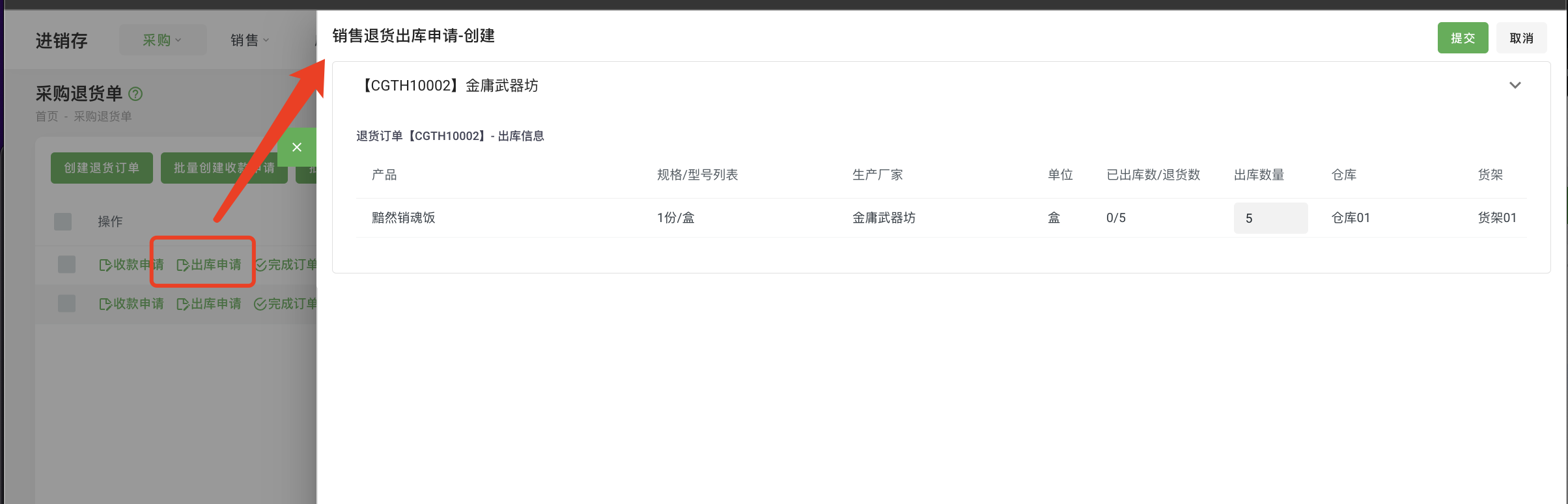
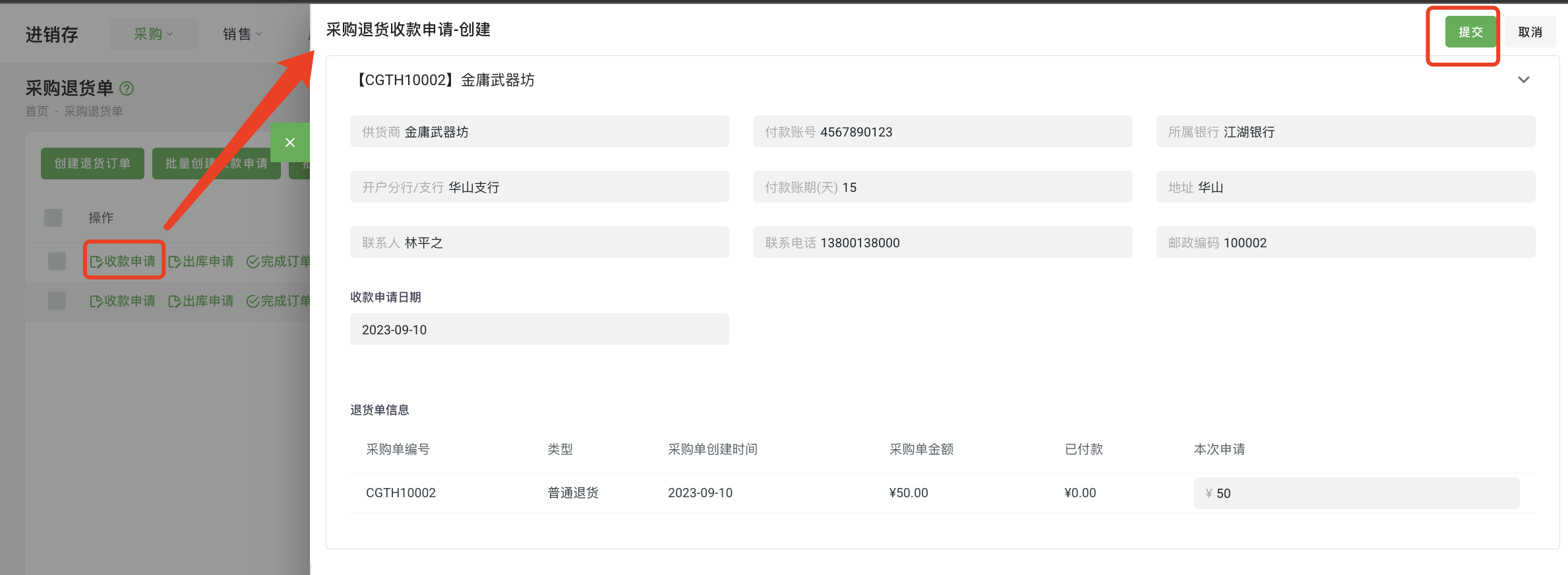
Operation Steps:
- The purchaser selects "Inventory - Outbound Application" from the menu.
- The purchaser clicks "Outbound Application" in the specific order, fills in the product quantity and other information, then clicks "Submit".
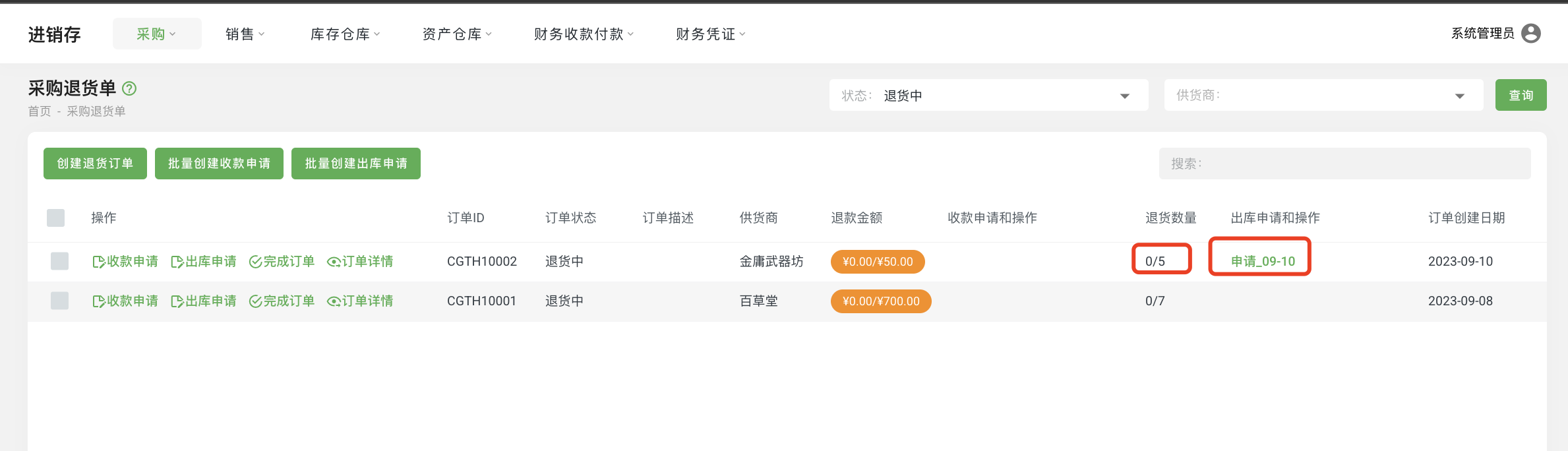
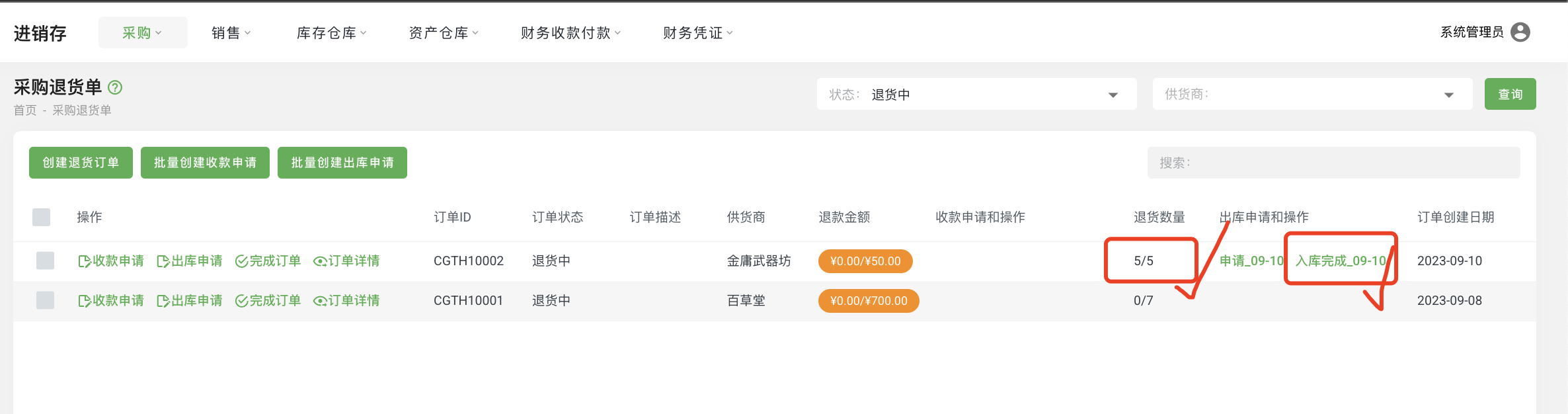
- The purchaser will see the "Application_09-0X" outbound application form in the order.
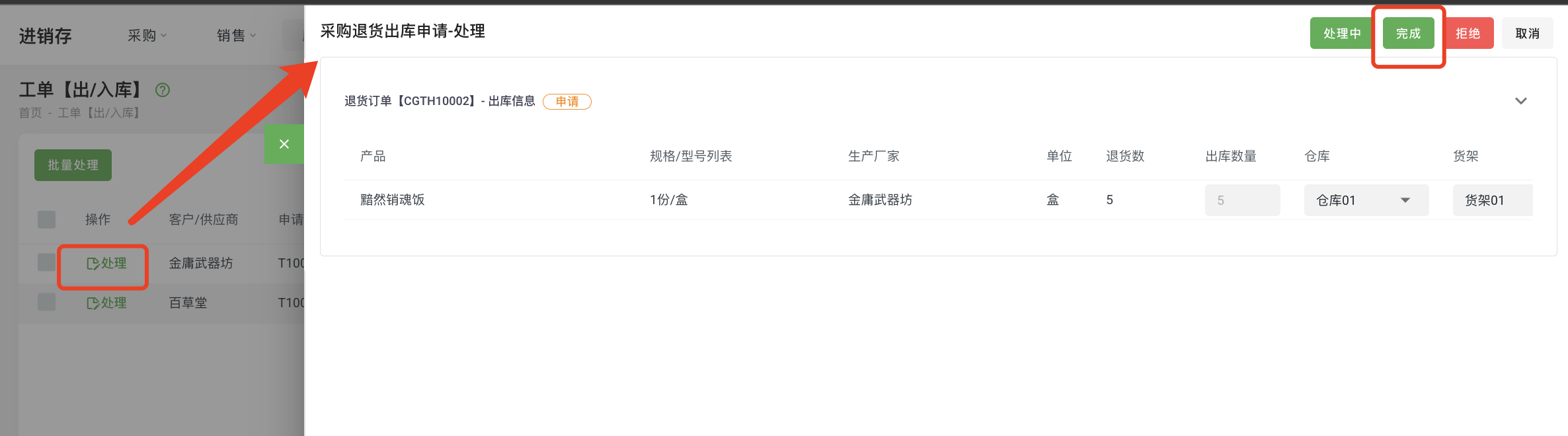
- The warehouse administrator finds the application form in "Warehouse - Work Order [Outbound/Inbound]", clicks "Process", and then selects "Complete".
- The purchaser will see the "Outbound Completed_09-0X" completion work order in the order.
Purchase Return Order - Payment Operation
Function Entry: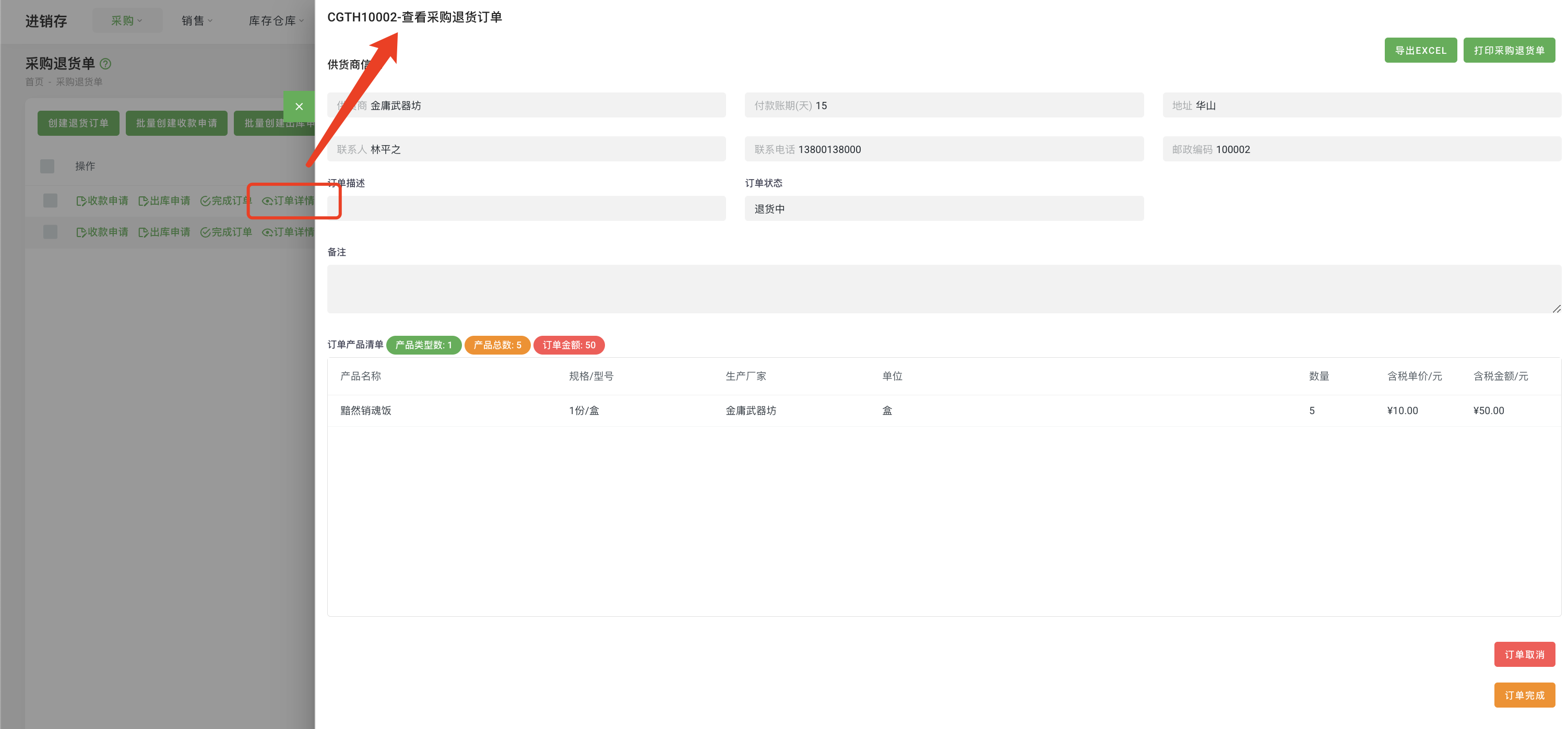
Operation Steps:
- The purchaser selects "Purchase - Purchase Return Order" from the menu.
- The purchaser clicks on the "Payment Application" of the order, fills in the amount, verifies the information, and then clicks "Submit".
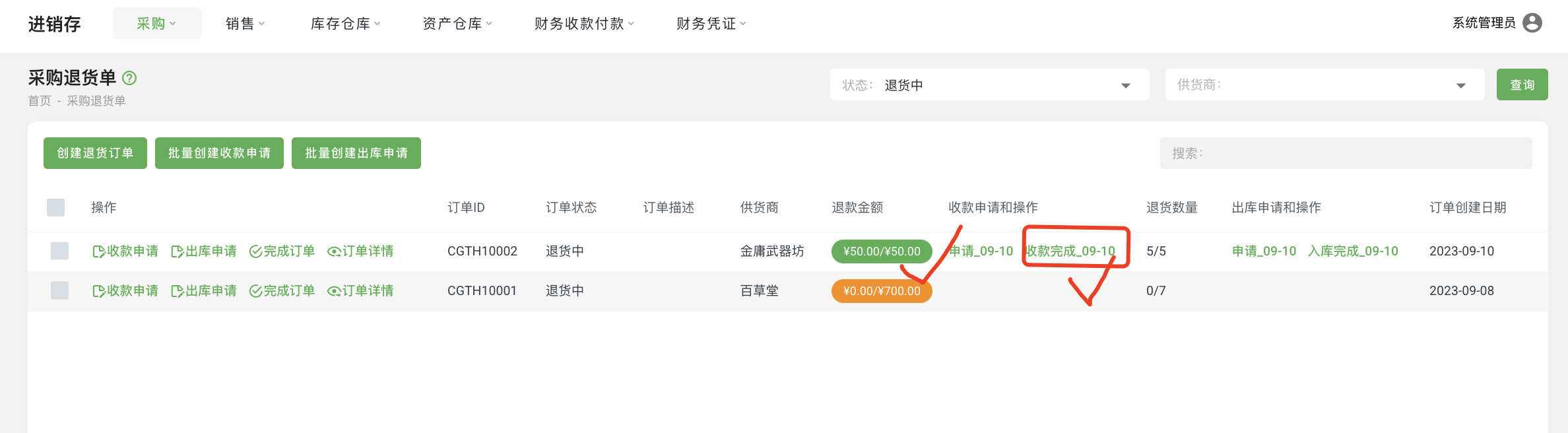
- The purchaser will see the "Application_09-0X" application form in the order.
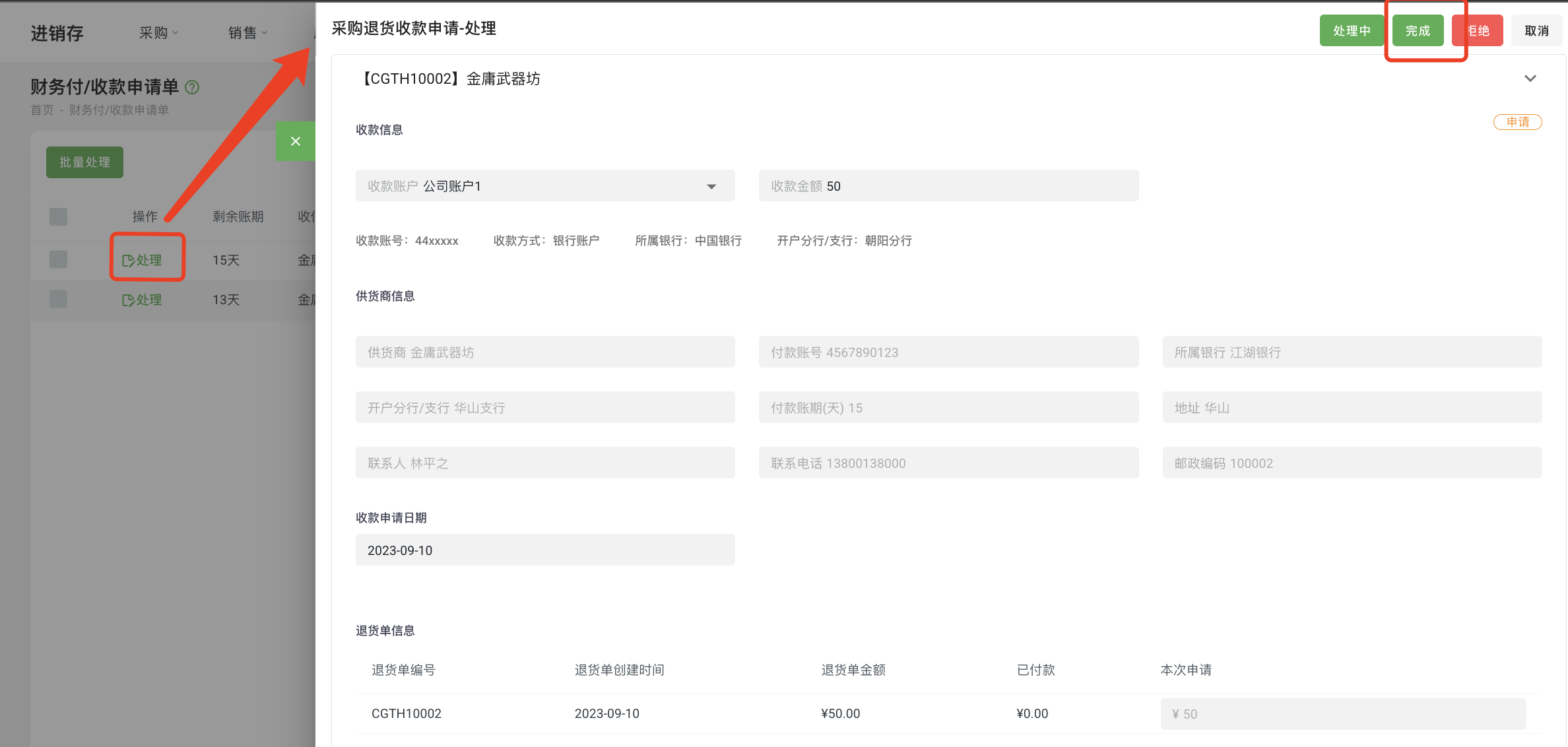
- The finance staff finds the application form in "Finance Payment - Work Order [Receipt/Payment]", clicks "Process", and then selects "Complete".
- The purchaser will see the "Payment Completed_09-0X" completion work order in the order.