
Exam Paper List
12122I. Function Overview
The exam paper list feature provides administrators and teachers with a centralized interface for managing all examination papers. Through this interface, users can easily add new papers, preview paper content, edit existing papers, and manage papers in the recycle bin. Additionally, users can utilize the question-setting feature to configure different types of questions for the papers.
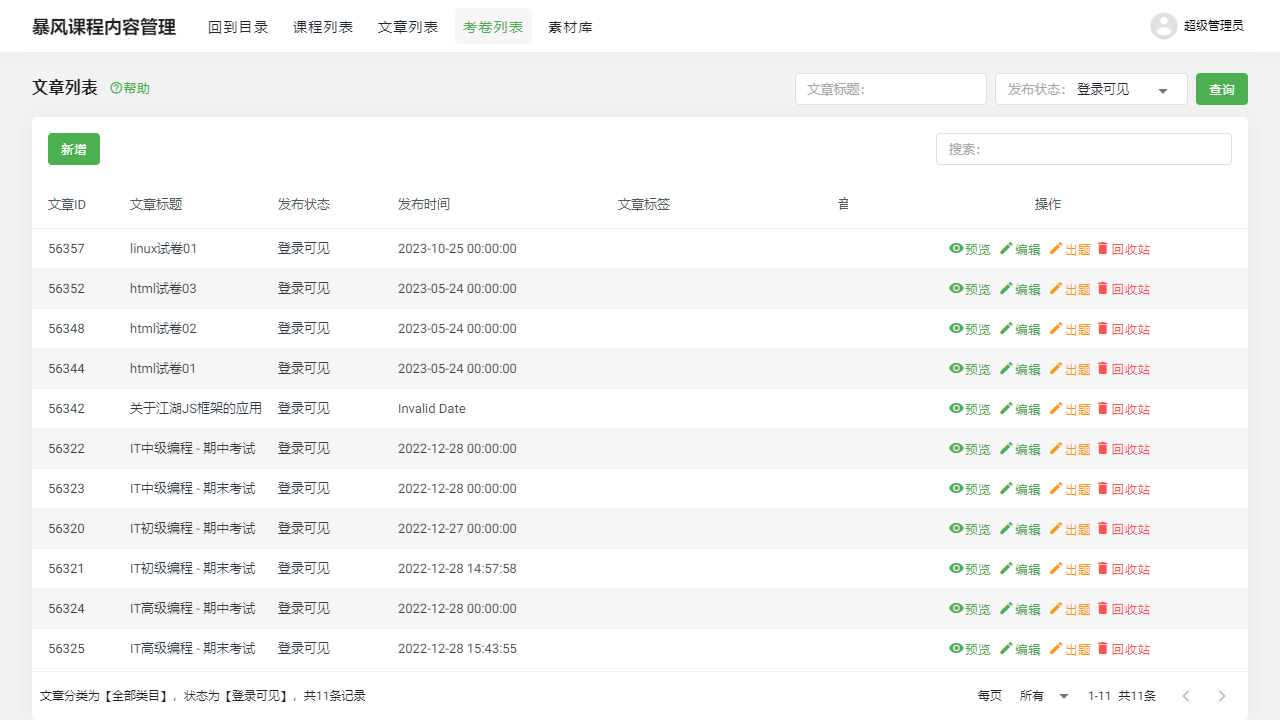
II. Function Entry
When users click on the "Exam Paper List" tab at the top of the page, the system will navigate to the exam paper list page, displaying all available examination papers.
III. Function Details
1. Exam Paper List
Add New: Users can create a new examination paper by clicking the "Add New" button. During the creation process, basic information about the paper, such as paper name, exam duration, etc., needs to be filled in.
Preview: After selecting a specific paper, users can click the "Preview" button to view the detailed content of the paper, including question types, question content, and options.
Edit: If modifications to the content or settings of an existing paper are needed, users can select the corresponding paper and click the "Edit" button. In edit mode, users can change any information about the paper.
Recycle Bin: Deleted papers will be moved to the recycle bin instead of being permanently deleted. In the recycle bin, users can restore accidentally deleted papers or permanently delete papers that are no longer needed.
2. Question Setting
The question-setting feature allows users to add different types of questions to the papers, including multiple-choice questions, multiple-answer questions, and fill-in-the-blank questions. Users can set the content, options, and correct answers of the questions as needed. Additionally, users can adjust the order and scoring of the questions.
IV. Notes
- When performing paper management operations, please ensure that you fully understand the content and settings of the paper to avoid data loss or confusion due to misoperations.
- When adding, editing, or deleting papers, be sure to verify the accuracy of the information to ensure the correctness and completeness of the papers.
- Regularly review and update the papers to maintain their timeliness and accuracy.
V. Frequently Asked Questions and Answers
Q1: How can I restore a deleted paper?
A1: Deleted papers will be moved to the recycle bin. In the recycle bin, find the paper you wish to restore and click the "Restore" button to bring it back to the exam paper list.
Q2: Can I change a published paper?
A2: It depends on the status and settings of the paper. If the paper has already been published and is in progress, direct modifications may affect students currently taking the exam. Therefore, please consider carefully and notify relevant students before modifying a published paper. If the paper has not been published or has ended, you can usually edit and modify it freely.
Q3: How do I add new questions to a paper?
A3: On the exam paper list page, select the paper to which you want to add questions and enter the question-setting interface. Here, you can choose the question type (such as single choice, multiple choice, fill-in-the-blank, etc.), and then fill in the question content, options, and correct answers. Once completed, click the "Save" button to add the new question to the paper.