
Class Management
12122I. Function Overview
The class management function is an important tool in the Jianghu online teaching system for managing the classes to which students and teachers belong. Through this function, administrators can easily create, edit, and delete classes, as well as assign corresponding students and teachers to each class.
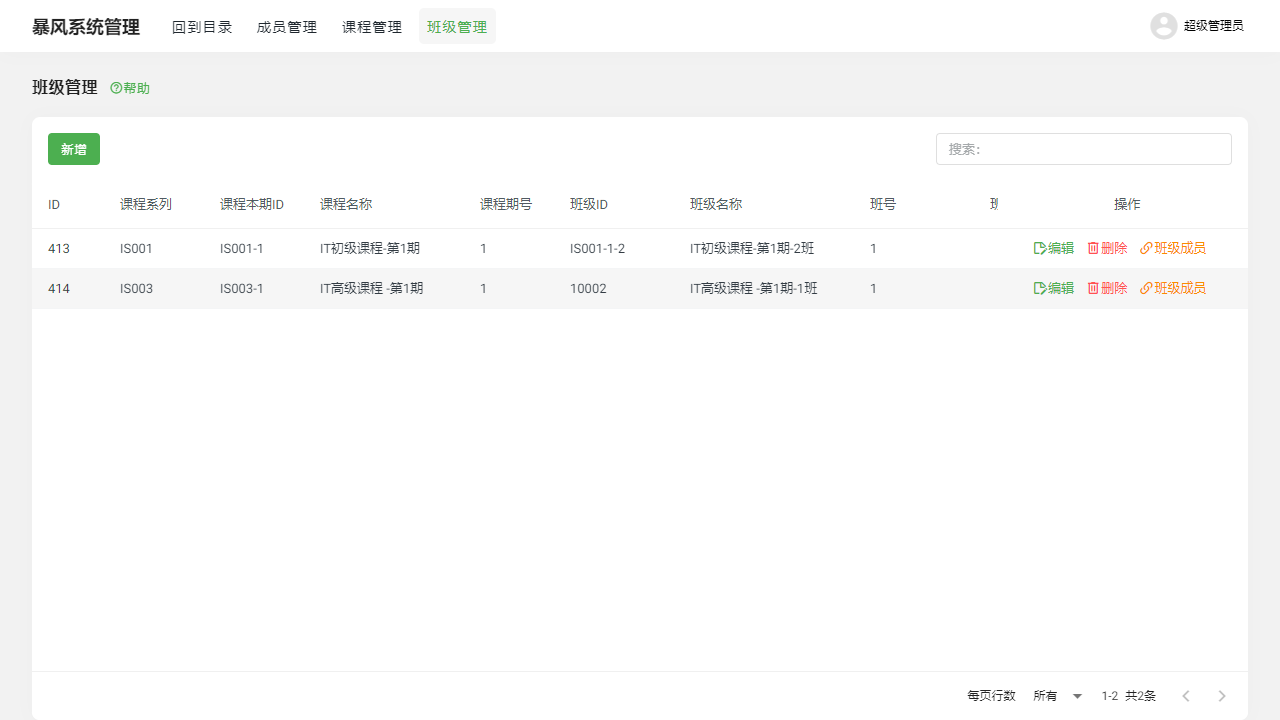
II. Function Entry
Users only need to click the 【Class Management】 tab at the top of the page, and the system will immediately navigate to the class management page, providing users with an intuitive and user-friendly management interface.
III. Function Details
1. Class List: Add/Edit/Delete
Add Class: Administrators can click the "Add Class" button and fill in the basic information of the class (such as class name, class description, etc.) to create a new class.
Edit Class: In the class list, select the class that needs to be edited and click the "Edit" button to modify the basic information of the class. After completing the modifications, click the "Save" button, and the system will update the class information in real-time.
Delete Class: If a class is no longer needed, the administrator can select that class and click the "Delete" button to remove it. The system will prompt a confirmation message to prevent accidental operations. Deleted classes will no longer be accessible, and related data will be permanently cleared.
2. Class Members: Add Students or Teachers to the Class
Add Students: In the class member management area, administrators can click the "Add Students" button and select the students to be added from the user list. Once students join the class, they will be able to access relevant teaching resources and activities for that class.
Add Teachers: Similarly, administrators can click the "Add Teachers" button to assign responsible teachers to the class. Assigned teachers will have management permissions for that class, including assigning homework and managing students.
IV. Notes
- When performing class management operations, please ensure that you fully understand the class settings and requirements to avoid confusion in teaching management due to accidental operations.
- When adding, editing, or deleting classes, please verify the accuracy of the information to ensure smooth class management.
- Regularly review and update class information to maintain its timeliness and accuracy.
V. Frequently Asked Questions and Answers
Q1: How do I add students or teachers to a class?
A1: On the class management page, select the class to which you want to add members, and enter the class member management area. Click the "Add Students" or "Add Teachers" button, select the students or teachers to be added from the user list, and then click the "Confirm" button to complete the addition.
Q2: Can deleted classes be restored?
A2: Once a class is deleted, its related data will also be permanently cleared and cannot be restored directly. Therefore, please ensure that this operation is confirmed before deleting a class.
Q3: How do I modify the basic information of a class?
A3: On the class management page, select the class that needs to be modified and click the "Edit" button. In the editing page, modify the basic information of the class (such as class name, class description, etc.), and then click the "Save" button to update the class information in real-time.