
Course List
12119I. Function Overview
The course list feature primarily provides teachers with a platform to manage and view their courses. Through this feature, teachers can easily add, edit, and delete courses. Additionally, these courses will only be displayed on the user side after passing platform review, ensuring the quality and accuracy of the courses.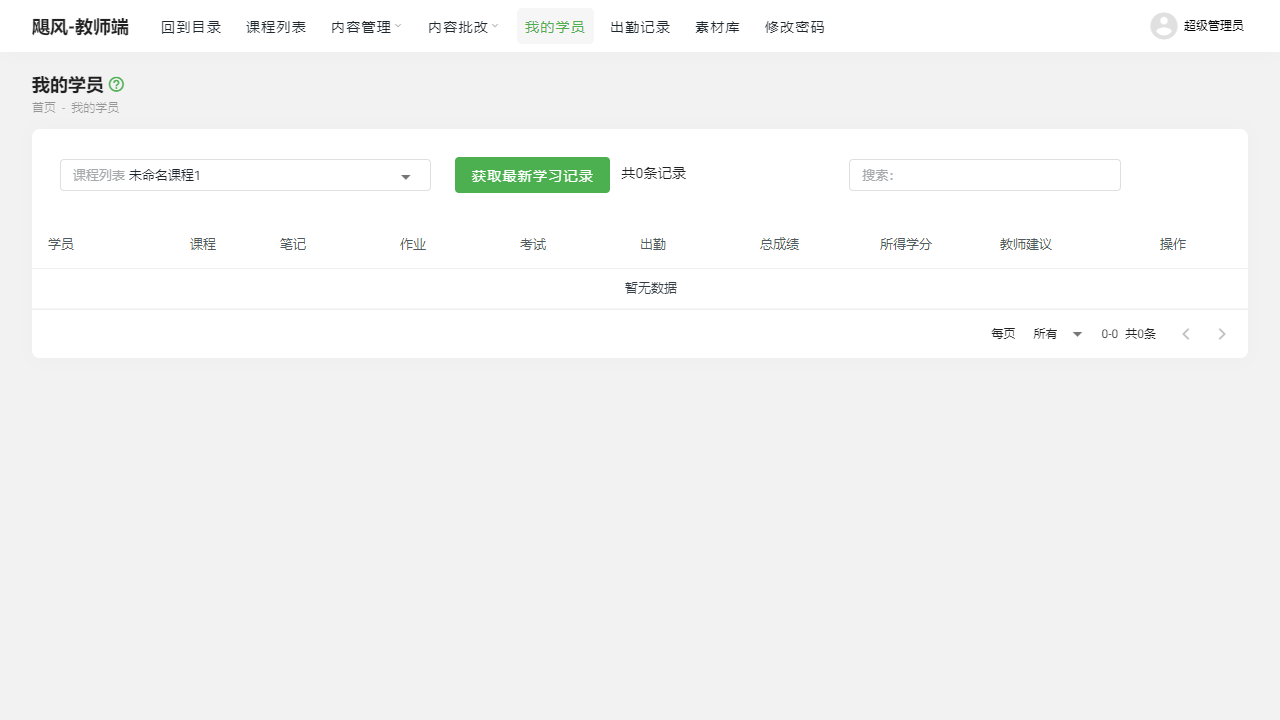
II. Function Entry
Teachers can enter the course list management page by clicking the 【Course List】 menu at the top of the page.
III. Function Details
Course List Management:
- Add Course: Teachers can click the add button and fill in relevant information about the course, such as course name, description, cover image, etc., to create a new course.
- Edit Course: In the course list, teachers can select the course they wish to edit and modify and update the course information.
- Delete Course: For courses that are no longer needed, teachers can choose to delete them to keep the course list tidy.
- Filtering Function: The course list provides a filtering function by review status and display status, allowing teachers to quickly find courses in specific states.
Number of Articles Associated with Courses:
- The course list will display the number of articles associated with each course, allowing teachers to understand the detailed content and depth of each course.
IV. Notes
- When adding or editing a course, please ensure that the information provided is accurate, complete, and complies with the platform's standards and requirements.
- Please exercise caution when deleting courses to avoid accidentally deleting important data.
- Be aware of the course's review status; only courses that have passed review will be displayed on the user side.
V. Frequently Asked Questions and Answers
Q: How can I check if my course has passed review?
- A: In the course list, you can check the review status of the course to see if it has passed review. If the review status shows "Approved," it means that the course can be displayed on the user side.
Q: Can I modify a course that has already passed review?
- A: Yes, you can modify a course that has already passed review. However, please note that modifications may require resubmission for review to ensure the accuracy and compliance of the course information.
Q: How can I add articles associated with a course?
- A: You can add associated articles in the course editing page. Please ensure that the articles are relevant to the course content and comply with the platform's standards and requirements. After adding articles, users can view these associated articles while viewing the course.
Q: I deleted a course, but I regret it. Can I recover it?
- A: Unfortunately, once a course is deleted, it typically cannot be directly recovered. However, if you have a backup or remember the detailed information of the course, you can try to recreate the same course. To avoid similar situations, please ensure that you confirm the course is no longer needed or that you have made appropriate backups before deleting it.