
Understanding the Appearance of Web Pages and the Code Behind Them - HTML, CSS
120021. Introduction to This Lesson
In this lesson, you will learn how web pages are created through intuitive examples and hands-on practice. By studying, you will understand the basic codes that make up web pages: HTML and CSS.
In this lesson, you will also learn an important programming skill: reading documentation. By reading relevant documents on websites like W3Schools and trying things out, you will learn how to write HTML and CSS code to create your own web files.
2. Understanding Web Pages
First, open the W3Schools website, and you can intuitively see what a web page looks like:
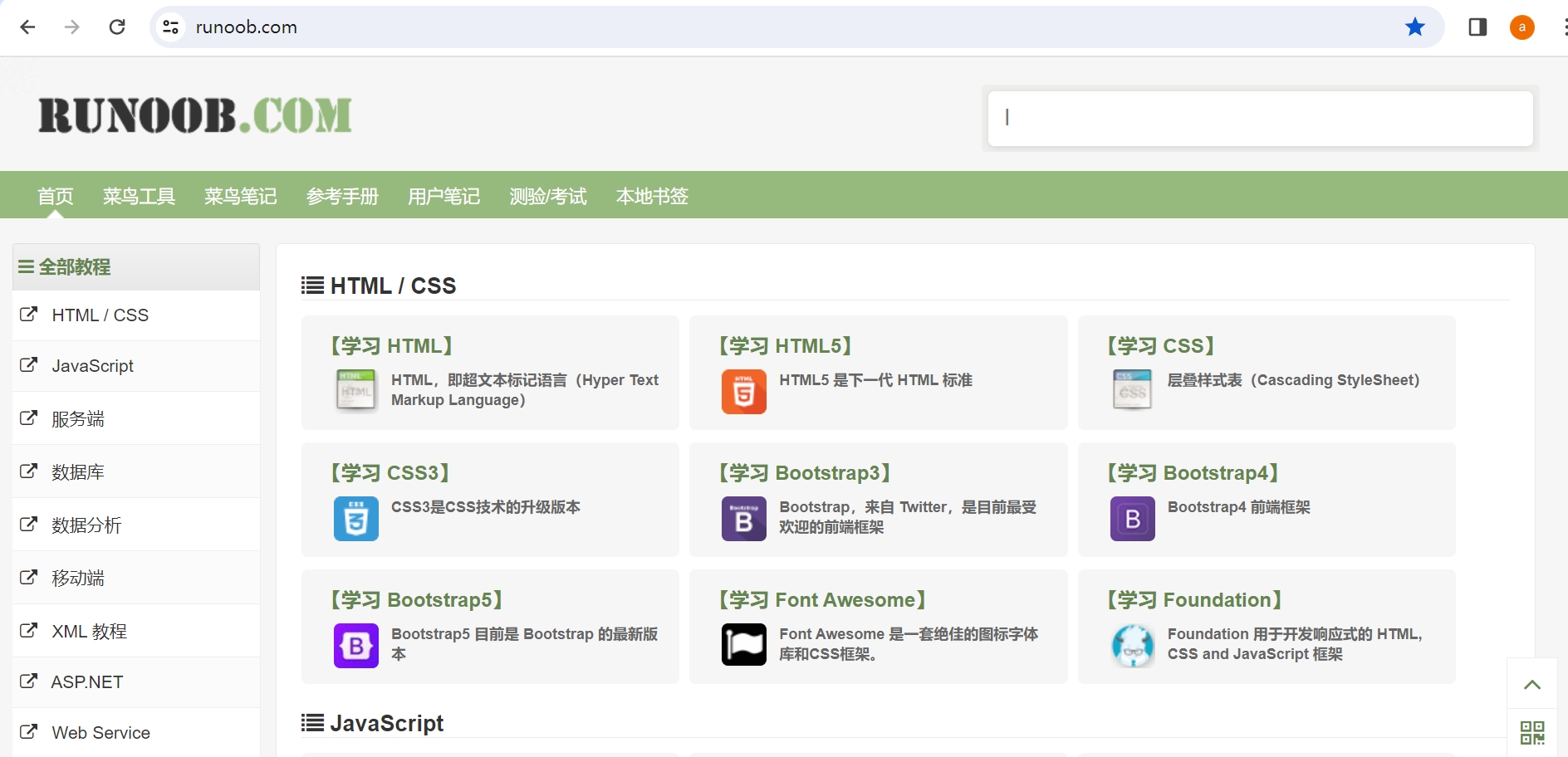
The appearance of any web page is primarily determined by the following elements:
- The content of the web page, such as text, images, data, etc.
- The style of the web content, such as color, font, size, etc.
- The layout of the web content
The arrangement and combination of these elements create the various websites we see.
3. Understanding the Code Behind the Appearance of Web Pages: HTML and CSS
The appearance of a web page is determined by two types of code: HTML and CSS.
We can use the developer tools in the Chrome browser to view the code behind a web page:
- Open the W3Schools website in the browser, right-click on the page, and select "View Page Source." This will open the source code of the current page.
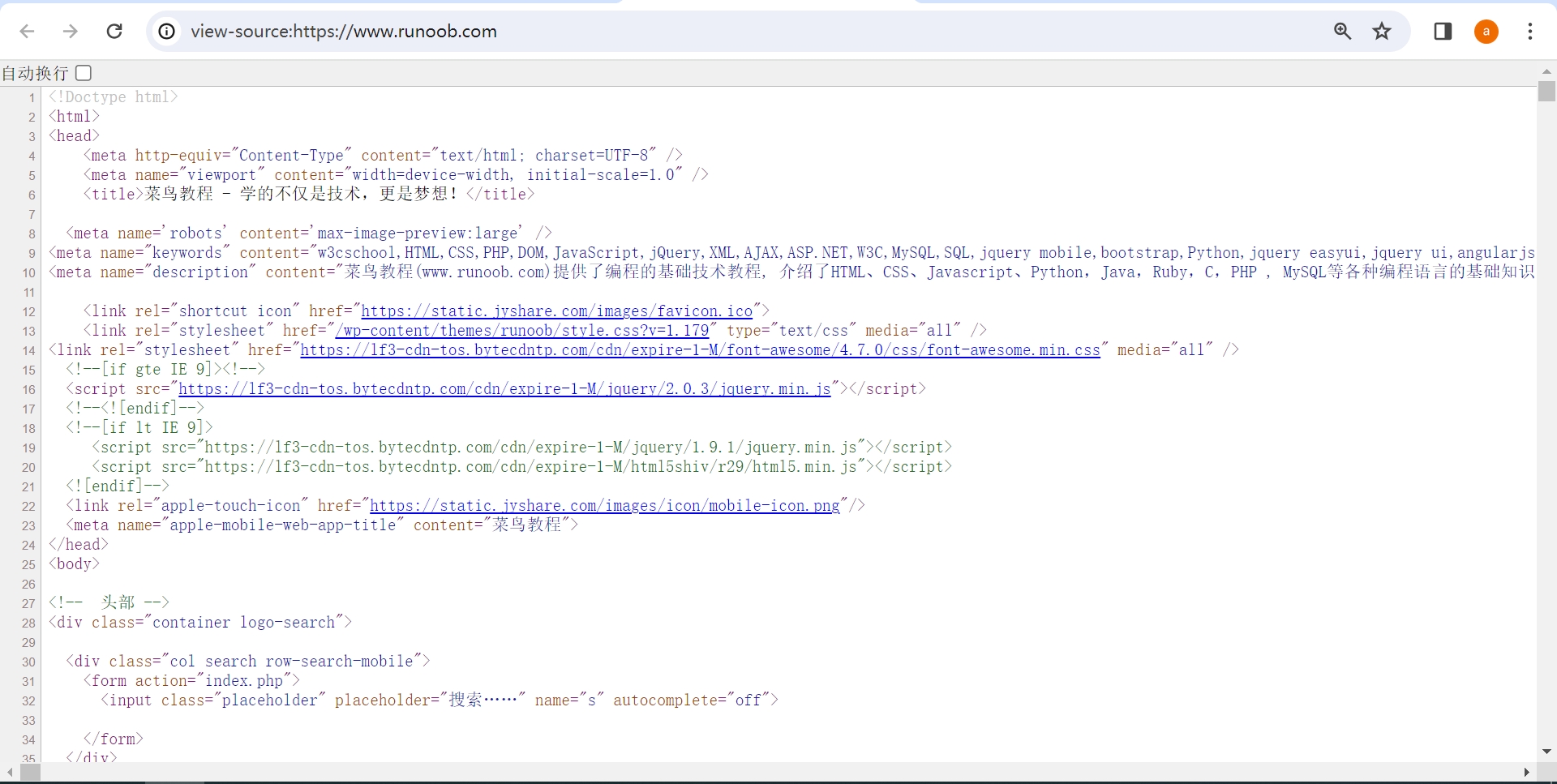
Scroll up and down the newly opened source code to quickly browse the general content. You will see many pairs of angle brackets
<>, which represent HTML code. A pair of<>and</>indicates an HTML tag.You may also see a large block of code enclosed by
<style>and</style>tags, which is the CSS code.
What is HTML:
HTML is the foundation for building web content. It consists of a series of paired tags <> and </>, which determine the content of a page; it is a markup language.
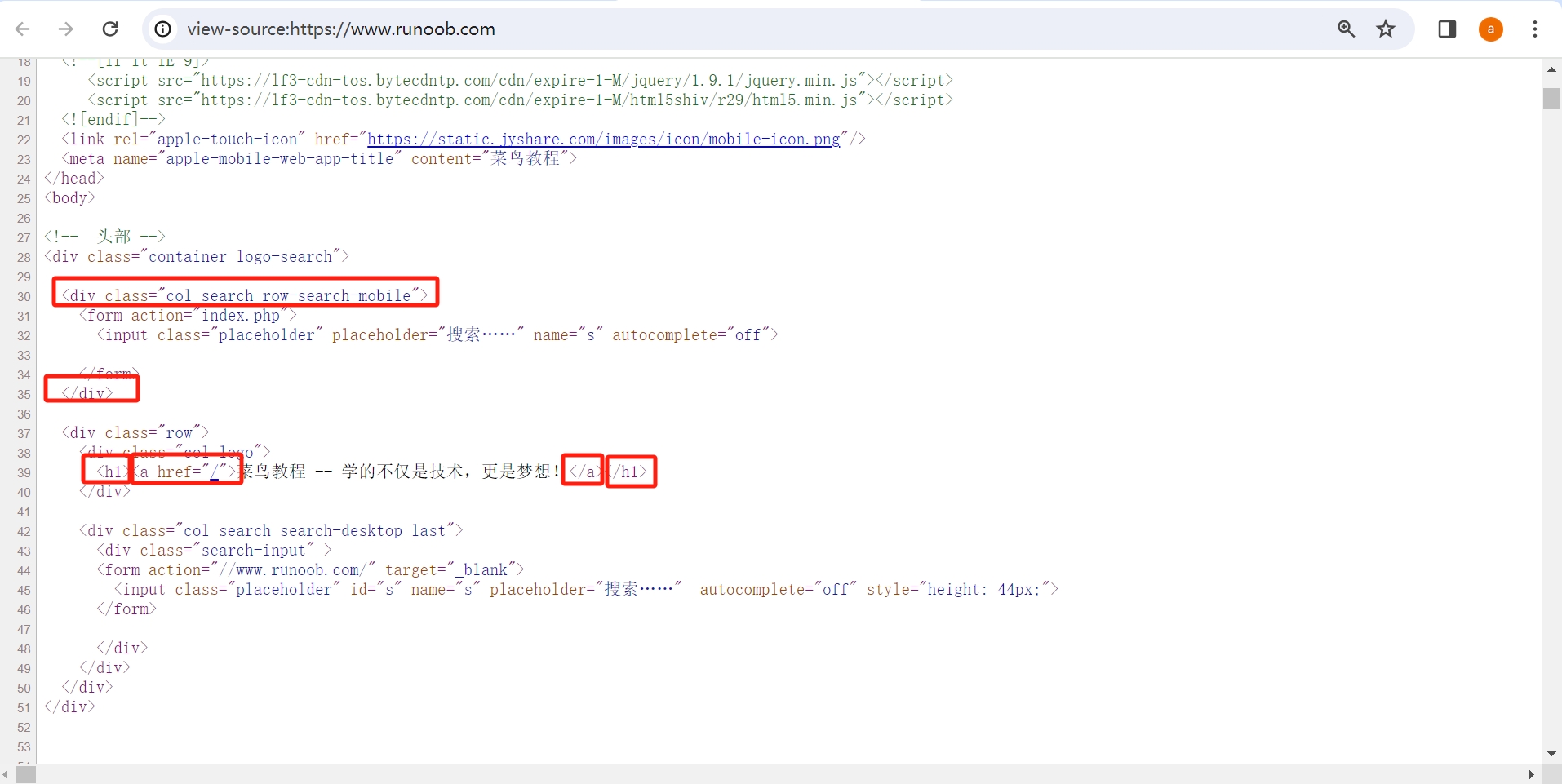
By using different HTML tags, we can create various content on the page, such as headings, paragraphs, links, images, tables, etc. For example:
- The
<h1>tag is used to define a top-level heading. - The
<p>tag is used to create a paragraph. - The
<a>tag is used to create links.
What is CSS:
CSS is used to control the style and appearance of web pages, including layout, background, color, image position and size, font style and size, etc.
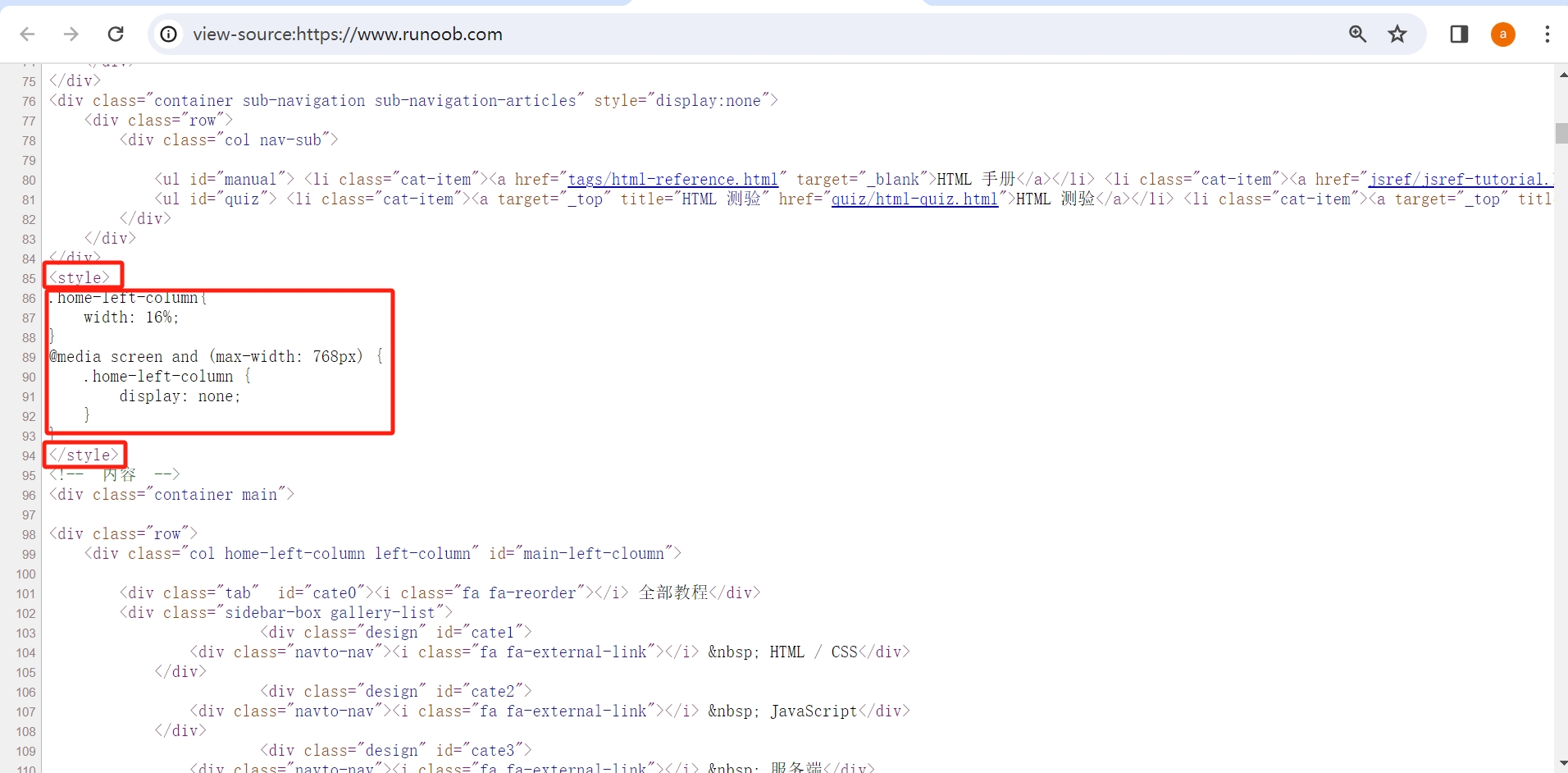
Common uses of CSS include:
colorfor setting colorsmarginfor setting marginsheight,widthfor setting height and width
Browsers Display Pages Using HTML and CSS:
The appearance of a web page is determined by both HTML and CSS. Browsers can understand these codes and display the web page according to the specified appearance.
Next, we will learn the specific uses of HTML and CSS by reading relevant documentation.
4. Learning to Read HTML and CSS Documentation
Reading documentation is an essential skill for programming. Learning to read documentation can make your programming learning process much more efficient.
The primary goal of reading documentation is to establish a knowledge framework, identify key concepts, and then understand the content of those key concepts. By reading the documentation while trying to write and observe, you can quickly grasp the content you are learning.
We will use the documentation on W3Schools as an example to guide you on how to read documentation.
How to Read the Homepage of a Documentation Website:
Browse the homepage of W3Schools: https://www.w3schools.com/. What do you see?
- The menu bar at the top of the page
- The sidebar on the left side of the page
- The main content area of the page
These three parts outline the main courses offered by W3Schools, which form the framework of the entire W3Schools website.
How to Read the Documentation of a Specific Tutorial:
Click on “[Learn HTML]” on the page to enter the HTML documentation: https://www.w3schools.com/html/html_tutorial.html. What do you see?
- The menu bar at the top of the page: displays the main categories of courses on W3Schools.
- The left sidebar: the main learning content of the HTML tutorial.
- The main content area: specific explanations of the learning content.
We can see that the left sidebar is the knowledge framework of the tutorial. Scroll up and down quickly to get a preliminary impression of each topic, and you will have established a knowledge framework for HTML.
Click on “HTML Introduction” and several top-ranked titles in the left sidebar to browse the learning content. These are the key concepts in HTML.
In the learning content, you will see that some sections have “Try it Yourself” online examples. Click the “Try it Yourself” button to modify the HTML code online and see the effects before and after the modification. This will help you understand the corresponding learning content.
Reading CSS Documentation on Your Own:
This is the basic method of reading documentation. Following the above method, you can try reading the CSS documentation on your own: https://www.w3schools.com/css/css_tutorial.html
5. Hands-On Practice with HTML and CSS on W3Schools
The above section introduced the method of reading specific tutorial documentation. Additionally, hands-on practice is an important learning method for programming. We will learn how to use these HTML tags by trying out the online examples on W3Schools: Headings, Paragraphs, Links.
Open the W3Schools Paragraphs page.
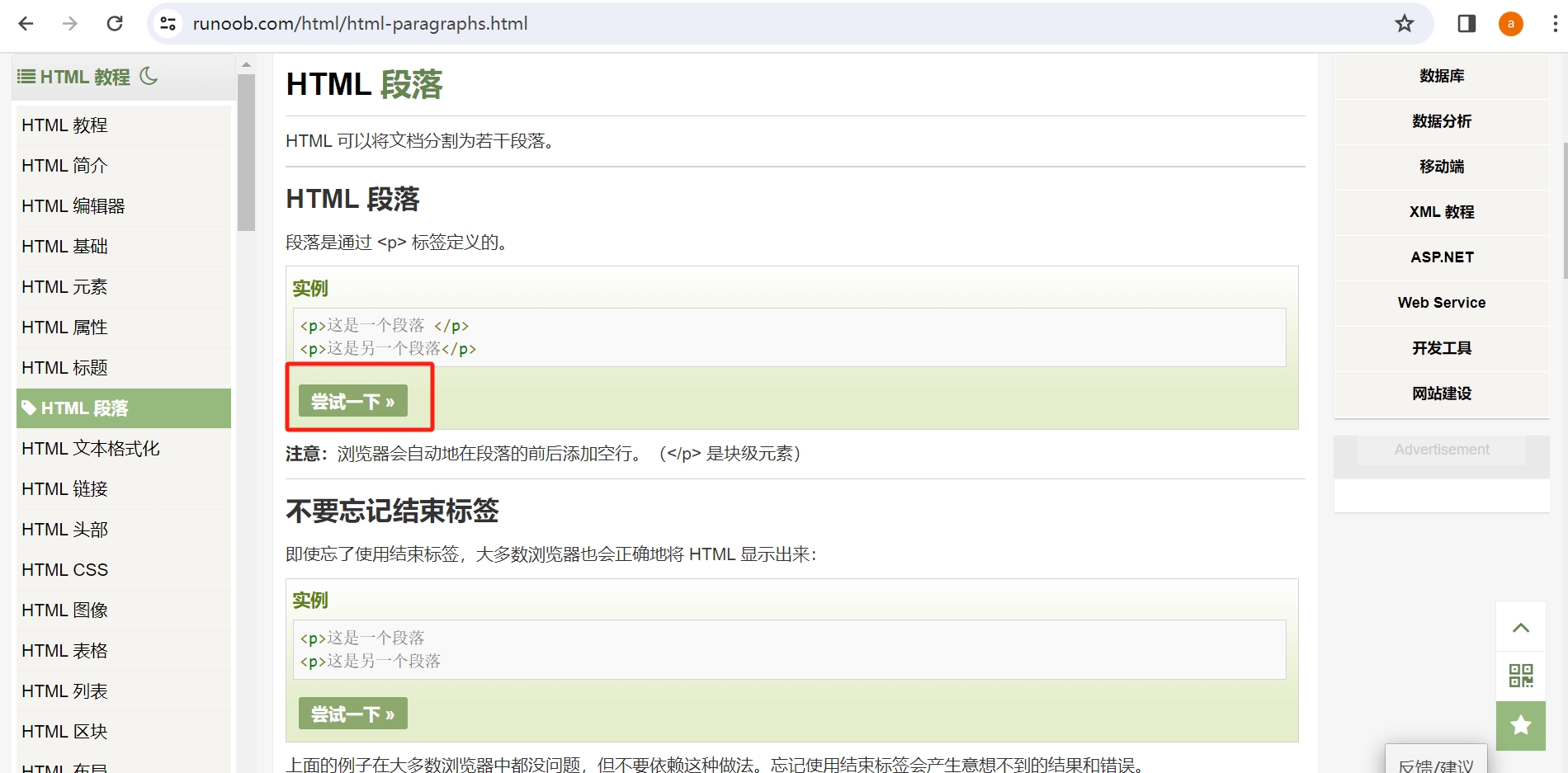
Click the “Run” button, and the text inside the <p></p> tags that appears on the right is the content visible in the browser. By using this online example, we can copy the content written in the <h1> and <a> tags from the documentation to the left coding area and try out the usage of the <h1> and <a> tags.
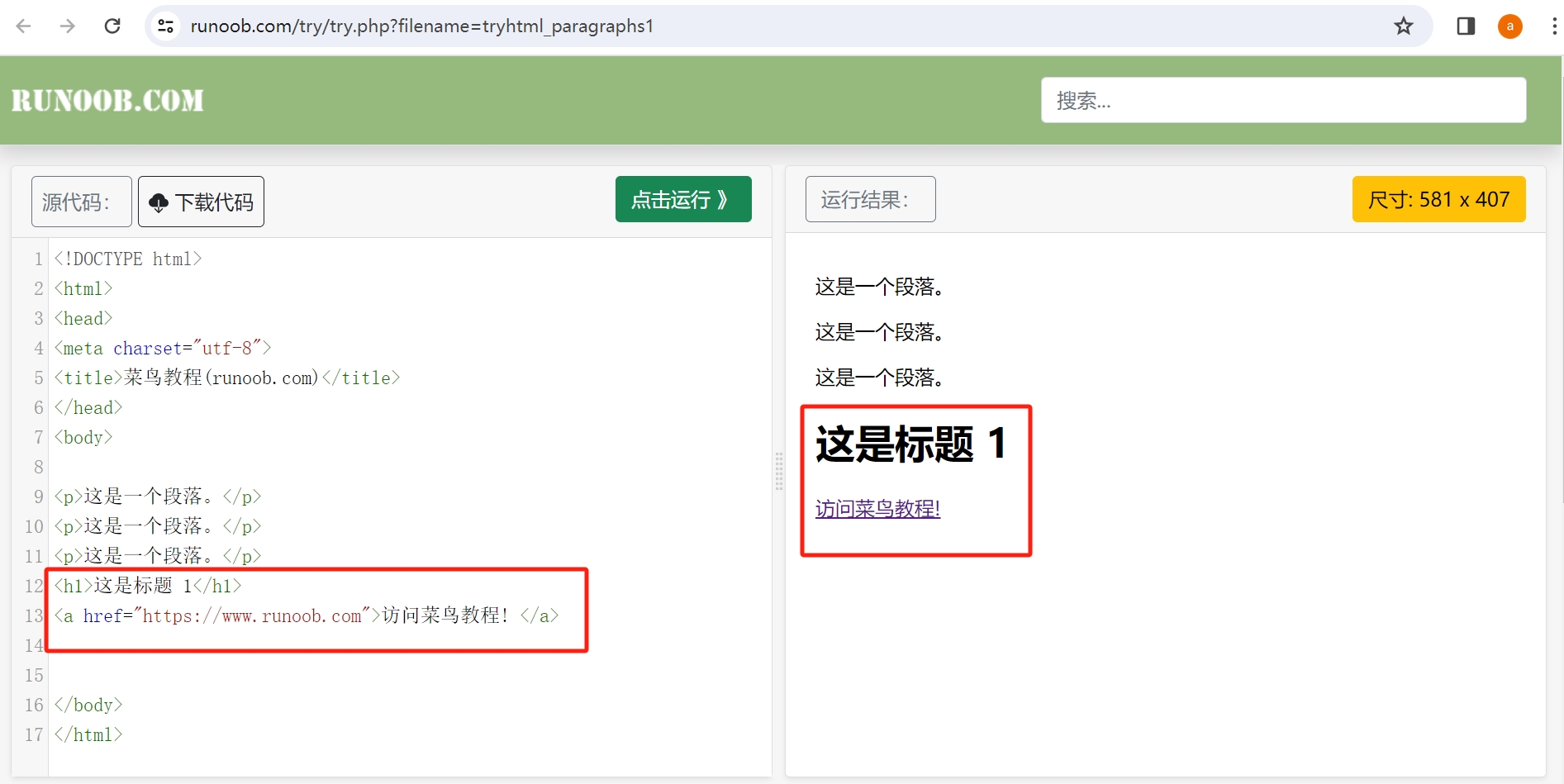
Click "Run," and you will see the new content added: the title text "This is Title 1" and "Link to W3Schools." Thus, using HTML tags can construct the content of a page.
In <a href="https://www.w3schools.com">Visit W3Schools!</a>, you see href="https://www.w3schools.com" is inside the <a>, where href: indicates an attribute that specifies the target URL for the link tag <a>. This is a common way to write HTML, providing additional information through attributes.
Try using CSS properties in the same way, such as color color, border border, width width.
For example: open the color color page and click the “Run” button.
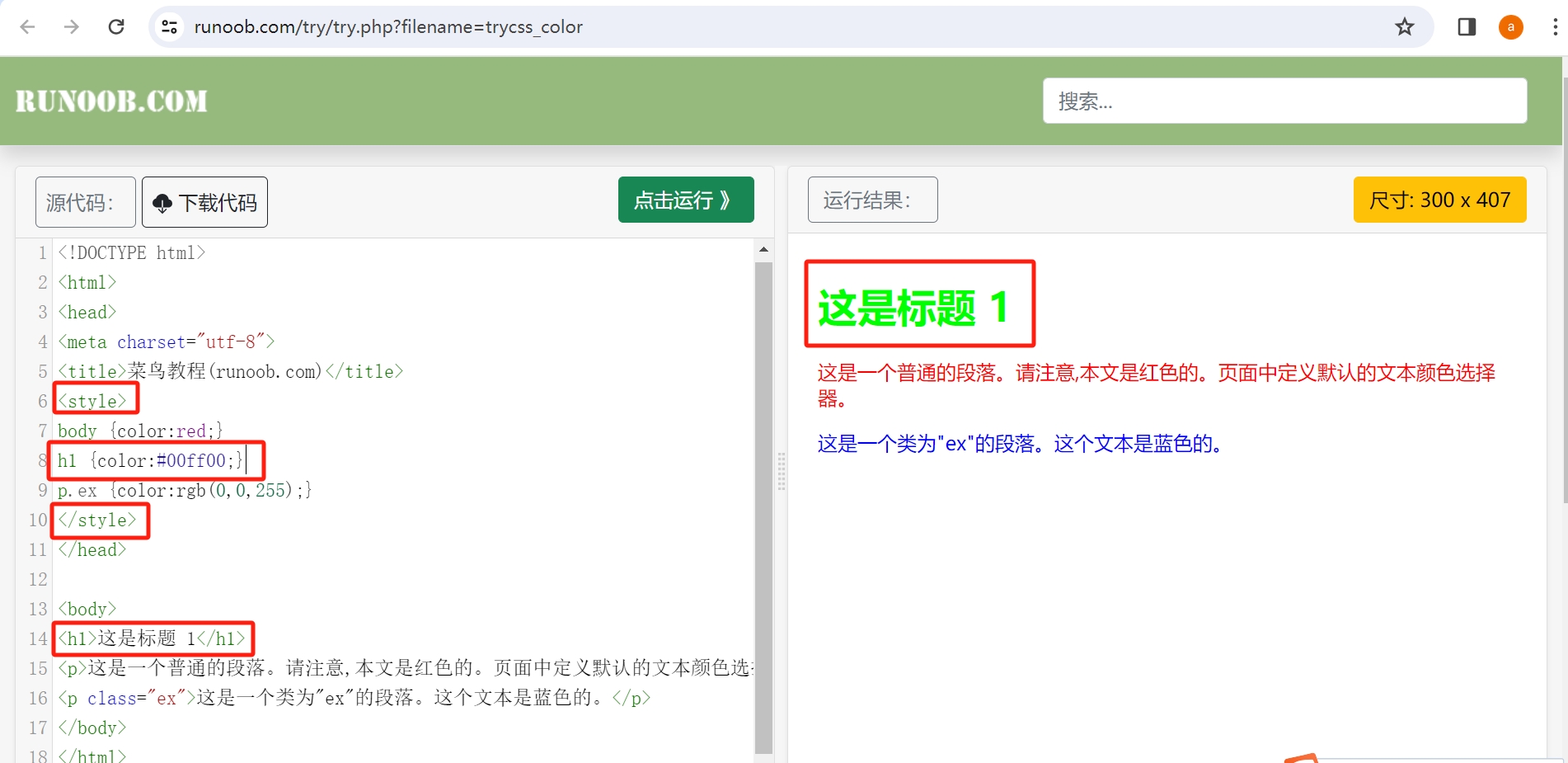
You will find that the color of "This is Title 1" has changed to green. The CSS property h1 {color:#00ff00;} written inside the <style></style> tags can change the color of the title, so CSS can control styles and appearances.
Through hands-on practice, we have intuitively learned the usage of HTML and CSS.
6. Project: Create the Simplest Web Page.
After the above learning, you have gained an understanding of HTML and CSS code. Now try to create your own web page.
Open the VSCode software, click “File” in the upper left corner, select New File, create an HTML file, ensuring the file extension is .html, and name the file hi.html, saving it in the folder for this lesson.
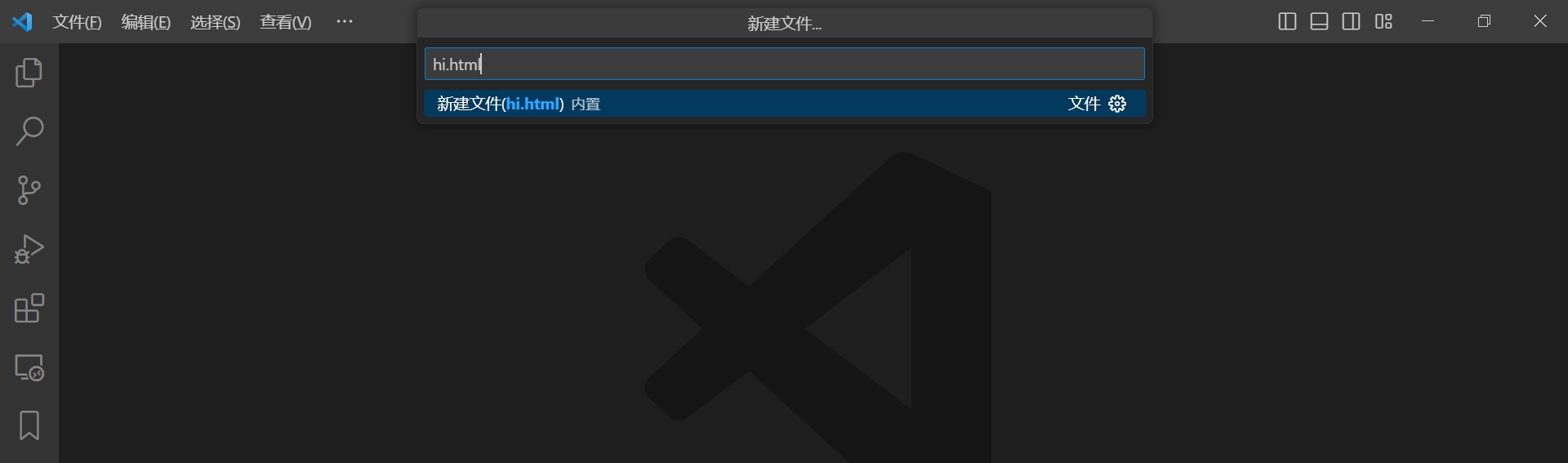
Copy the following code:
<body>
    Hello World
</body>
Paste it into the editing area and then save the file.
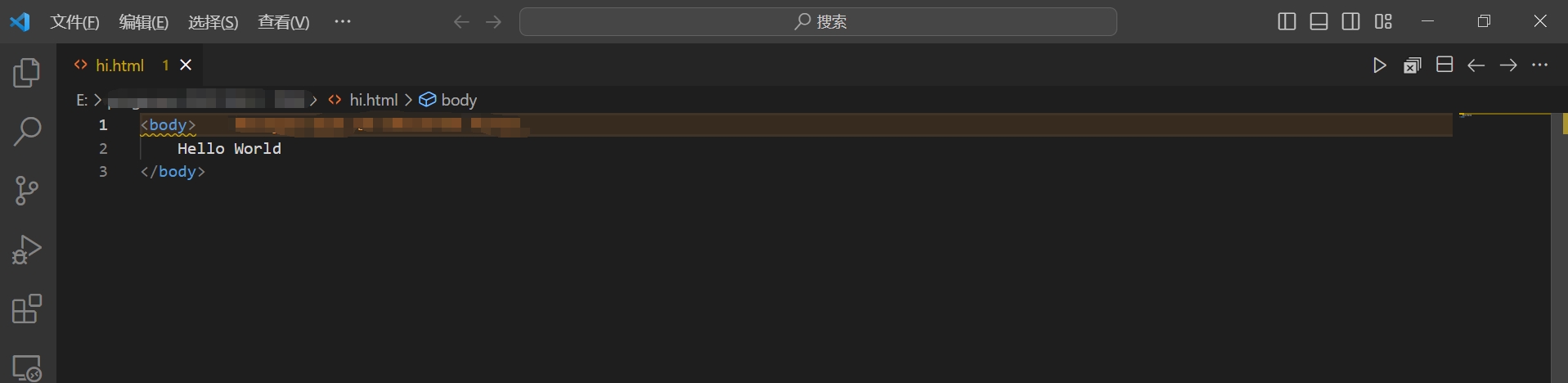
Open hi.html in a browser, and the page will look like this; this is the simplest web page:
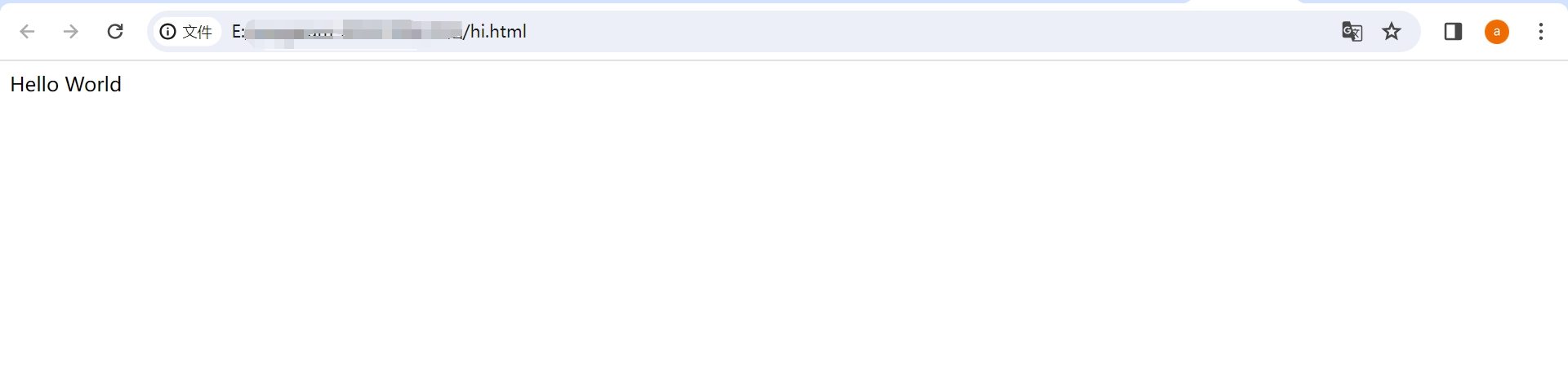
By writing the simplest web page, you have learned to use VSCode to edit code, and this method will be frequently used in the following lessons.