
Programming is the Combination of Variables and Functions
120021. Introduction to This Lesson
In the previous lesson, you gained a preliminary understanding of the concepts and basic functions of JavaScript: to achieve dynamic effects on web pages.
In this lesson, you will delve deeper into the concepts of variables and functions, further understanding the essence of programming. The essence of programming is to combine variables and functions, using functions to manipulate variables, thereby changing the content of the page.
2. Programming is the Combination of Variables and Functions
When we open a web page, some parts of the page may be static, such as document content; while other parts may change based on user interactions, such as searching for a keyword or filling out a form. This variable dynamic content is data, and data is stored in variables. Therefore, we can view data as variables, and variables are data.
Typically, the parts of the page that are operated through "clicks" are functions. When a function operates on data, the content displayed on the page changes. The operations that functions perform on data can be categorized into four types: addition, deletion, modification, and querying.
For example: when a user enters a keyword in the search box and clicks the search button, the corresponding search results will be displayed on the page. Here, the function executes the corresponding operation based on the data entered by the user, which is the query operation.
In summary, the essence of programming is not complex. Variables are data, and functions are methods for manipulating data. Combining these two elements is programming.
3. Understanding Variables and Functions in Depth
Variables:
A variable is a container used to store data. Typically, we use var to define a variable, for example:
var name = "John";In the code above, we defined a variable name. name is the variable name, and in subsequent code, you can use name to represent this variable. For instance, you can use the name variable in a popup to represent the name to be displayed:
alert("Hello, " + name);Variables can have different data types, such as numbers (Number), strings (String), boolean values (Boolean), etc. Variables of different data types have different definitions and usage methods. You can read the related documentation on the Runoob tutorial to learn how to use data types.
Functions:
A function is a piece of code that operates on the data within variables. We typically use function to define a function, for example:
function myFunction(y) {
    alert(y);
}
In the example above, we defined a function called myFunction, which displays a popup, and the content of the popup is determined by the variable y.
functionis fixed and indicates that this is a function.myFunctionis the function name, and it is best if the function name relates to its purpose.()indicates the input parameters for this function, which are variables used in the internal operations of the function.{}contains the operations within the function.
The structure of a function is: function name: myFunction, parameter: y, and the function body: the code enclosed in {}.
Functions can also accept multiple input parameters, separated by commas ,. For example, the following function add implements a simple addition operation:
// Define a function add to calculate the sum of two numbers
function add(a, b) {
    return a + b;
}
In the code above, a and b are two input parameters. After receiving the input, the add function will return the result of adding a and b. How can we display this result?
We can create a variable c, call the add function, and pass in the parameters 1 and 2, storing the result of adding 1 and 2 in the variable c, and then use console.log(c) to print the calculation result to the console, thus displaying the result of the add function. For example:
// Create a variable c, call the add function and pass in parameters 1 and 2, storing the calculation result in variable c
var c = add(1, 2);

// Output the calculation result
console.log(c) // Output: 3
Try modifying the function to subtract two numbers and change the parameters to other numbers, and see how the calculated results change.
You can read the related documentation on the Runoob tutorial to better understand function parameters and return values through practical examples.
4. Learning Programming Through Examples
We have understood the basic concepts and usage of variables and functions. Next, let's look at how variables and functions combine to achieve programming effects through the following example.
In the previous lesson, we wrote a very simple code for popups: The Simplest JavaScript: Popup. Now let's rewrite this code, changing the text in the popup 'I am a popup!' to a variable 'text' and see what happens.
- Create an HTML file
ProgrammingExamplePopup.htmland copy the following code into this file:
<body>

    <input id="text"></input>
    <button onclick="myAlert()">Click Me</button>

    <script>
    function myAlert() {
        var text = document.getElementById('text').value;
        alert(text);
    }
    </script>

</body>- Save the file and open it in a browser. In the input box, type: “This is my programming”, and then click the "Click Me" button. You will see the following page:

You can try entering any text in the input box, and after clicking the "Click Me" button, observe the changes in the text of the popup. In this code:
- The variable
textis used to store the text input by the user in the input box. - The function
myAlert()displays this text in a dialog box throughalert(text). - When the "Click Me" button is clicked, it triggers the function
myAlert(), achieving the purpose of displaying the variabletext.
This simple example helps you understand more clearly: programming is about combining variables and functions. In programming, variables are used to store data, and functions are used to perform operations and functionalities.
More attempts:
- Read the Runoob tutorial documentation: JavaScript Operators, and try manipulating the examples inside to deepen your understanding of programming.
5. Project: Write a Simple Calculator
Let's continue to get hands-on and write a simple calculator code. A calculator is an intuitive tool that performs corresponding operations and displays the calculation results when we input numbers and operators. This project will help you better understand the application of variables and functions, especially how functions operate on variables.
First, download the example code: Simple Calculator. Then, open the calculator.html file in a browser, and we see the page looks like this:
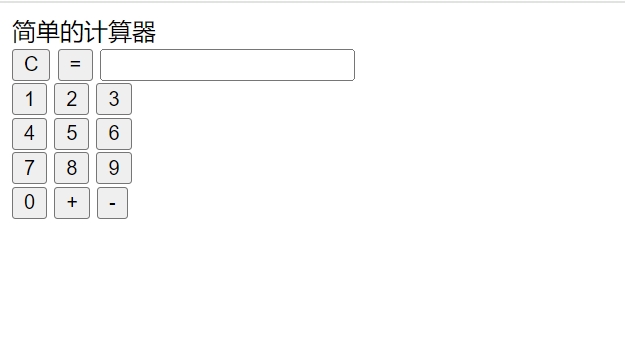
This is a dynamic page that displays a simple calculator composed of several buttons and an input box. The buttons include numbers 0-9 and operators '+', '-', '=', 'C'. When you click these buttons with the mouse, the input box displays the corresponding numbers and calculation results.
In the previous lesson, we learned about the principle of displaying dynamic data on web pages and already know that the code for a dynamic page consists of two parts: templates and scripts. Next, we will open the calculator.html file in VSCode and look at the template code and script code step by step to understand how to implement the calculator's functionality by setting variables and functions.
- Template Code
Let's first look at the template code. This code is written in HTML and shows the appearance of the calculator. To help you understand better, you can copy the following code into VSCode and save it as mycalculator.html, then open it in a browser.
    Simple Calculator
    <br>
    <button onclick="e()">C</button>
    <button onclick="d()">=</button>
    <input id="c">
    <br>
    <button onclick="b(1)">1</button>
    <button onclick="b(2)">2</button>
    <button onclick="b(3)">3</button>
    <br>
    <button onclick="b(4)">4</button>
    <button onclick="b(5)">5</button>
    <button onclick="b(6)">6</button>
    <br>
    <button onclick="b(7)">7</button>
    <button onclick="b(8)">8</button>
    <button onclick="b(9)">9</button>
    <br>
    <button onclick="b(0)">0</button>
    <button onclick="b('+')">+</button>
    <button onclick="b('-')">-</button>
In this template code, an input box <input> is defined with the id of c, as well as all the buttons <button> displayed in the calculator, each corresponding to a function. Based on their functionality, they are divided into functions e(), d(), and b(), which we can understand as follows:
Input box
c: An input box that displays the input and calculation values.Function
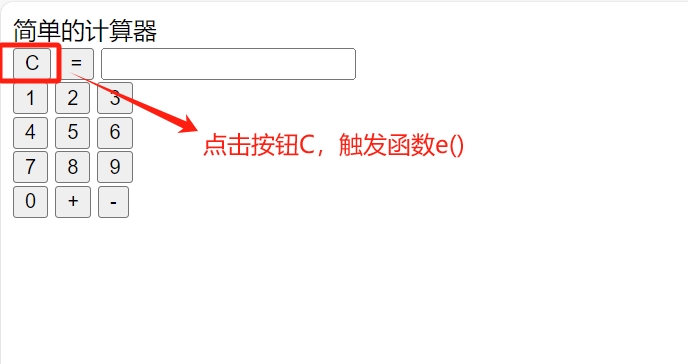
e(): Used to clear the content in the input box. When the "C" button is clicked, this function is triggered.Function
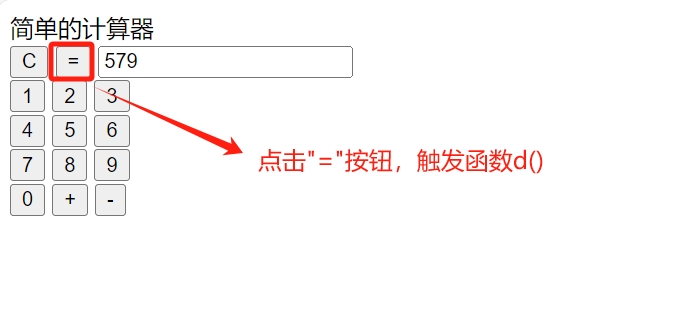
d(): Used to perform calculation operations. When the "=" button is clicked, this function is triggered.Function
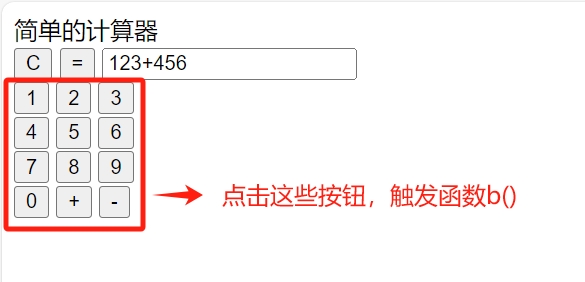
b(): Used to add numbers or operators to the input box. When a number button or operator button is clicked, this function is triggered, passing the corresponding number or operator as a parameter to this function.
Having understood the template code, let's continue to see how the script code defines functions to manipulate the template code to achieve the calculator's functionality.
- Script Code
Now let's look at the script code. The script code is enclosed within a pair of <script> tags, where a variable a is created, and functions function b(x), function e(), and function d() are defined. Copy this code into mycalculator.html, save it, and open it in a browser.
    <script>
        var a="";
        function b(x){
          a=a+x;
          document.getElementById("c").value=a;
        }

        function e(){
        a="";
        document.getElementById("c").value=a;
       }

        function d(){
        a=eval(a).toString();
        document.getElementById("c").value=a;
       }
    </script>
We will understand the functionality of the variable and functions in this script code from top to bottom.
First, a variable a is created with an initial value of an empty string, used to store the content input by the user.
var a="";Next, let's look at the definition of the function function b(x):
        function b(x){
          a=a+x;
          document.getElementById("c").value=a;
        }
The function function b(x) is the definition of the template code function b(). It accepts a parameter x, representing the number or operator to be added to the input box. You can understand its code as follows:
a=a+x: This line of code indicates that the buttonxclicked each time is added to the variablea, achieving the accumulation of numbers and operators.document.getElementById("c").value=a: This line of code displays the content of variableain the input box with theidofc, achieving the display of numbers and operators in the input box.
The function's purpose is to display numbers and operators in the input box. When you click the number and operator buttons on the page, such as "123+456", you will see the following effect:
Next, let's look at the definition of the function function e():
      function e(){
        a="";
        document.getElementById("c").value=a;
      }
The function function e() is the definition of the template code function e(). You can understand its code as follows:
a="": When the "C" button is clicked, the variableais set to an empty string.document.getElementById("c").value=a: This line of code displays the content of variableain the input box with theidofc, achieving the effect of clearing the input boxc.
This function is used to clear the content in the input box. When you click the number and operator buttons on the page and then click the "C" button, you will see the following effect:
Finally, let's look at the definition of the function function d():
      function d(){
        a=eval(a).toString();
        document.getElementById("c").value=a;
      }
The function function d() is the definition of the template code function d(). You can understand its code as follows:
a=eval(a).toString(): When the "=" button is clicked, the contentainput by the user will be evaluated usingeval(a).toString(), and the result will be stored in the variablea.document.getElementById("c").value=a: This line of code displays the content of variableain the input box with theidofc, achieving the effect of displaying the calculation result in the input box.
This function is used to implement the calculation functionality. When you click the number and operator buttons on the page, such as "123+456", and then click the "=" button, you will see the following effect:
Finally, let's summarize. In this simple calculator project, the template code and script code contain one variable and three functions, which implement the following functionalities:
The variable
ais responsible for storing the input data and displaying it in the input boxc;The function
b(x)is used to display the numbers and operators in the input box;The function
e()is used to clear the content in the input box;The function
d()is used to implement the calculation functionality.
Through the combination of these variables and functions, we can render the basic functionality of the calculator in the template through scripts, which is a simple form of programming.
Reference: JavaScript eval() Function
6. Programming Tips: Using Browser Developer Tools
Programming often encounters situations where the code does not run correctly. Using the browser's developer tools can help you find where the code errors are.
If you find that the calculator is not functioning correctly, you can add a line of code console.log('a', a) to print the result of a in the Chrome browser console for easier debugging.
   function d(){
      a=eval(a).toString();
      document.getElementById("c").value=a;
      console.log('a', a);
    }
Right-click on the page, open "Inspect", and you will see the error message.
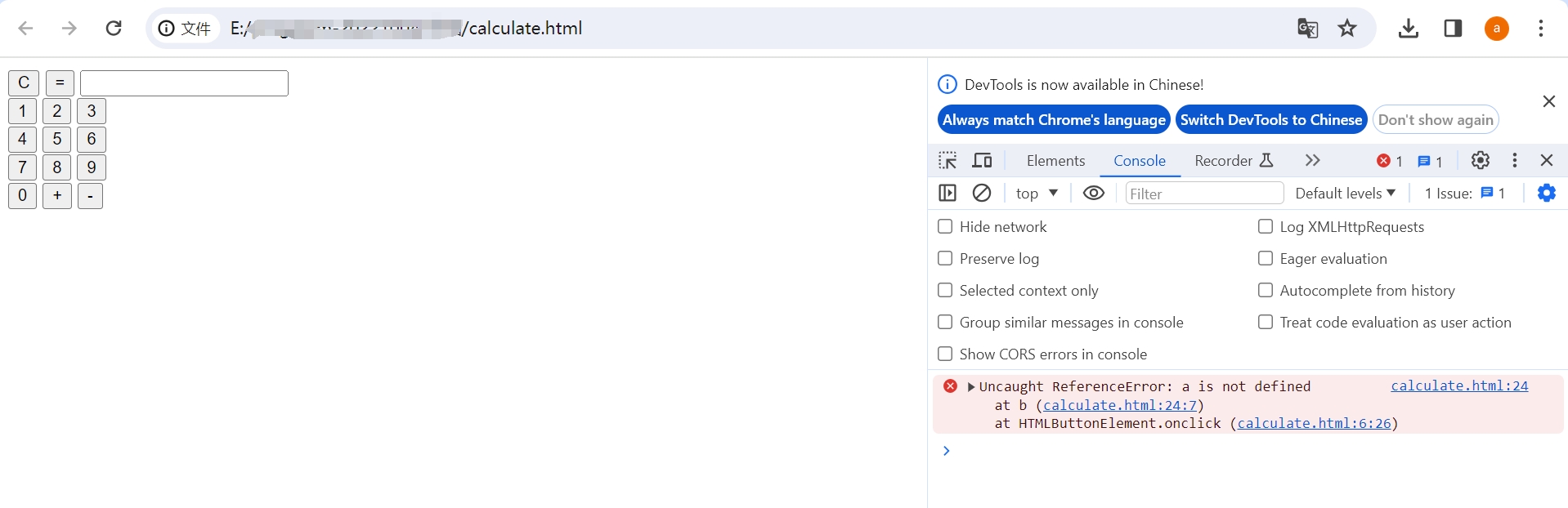
By checking the console, you find that the value of a has not been printed. According to the error message a is not defined, it means that the variable a has not been defined with var. After adding the definition var a = "", the value of a can be printed in the console, and the webpage runs normally.
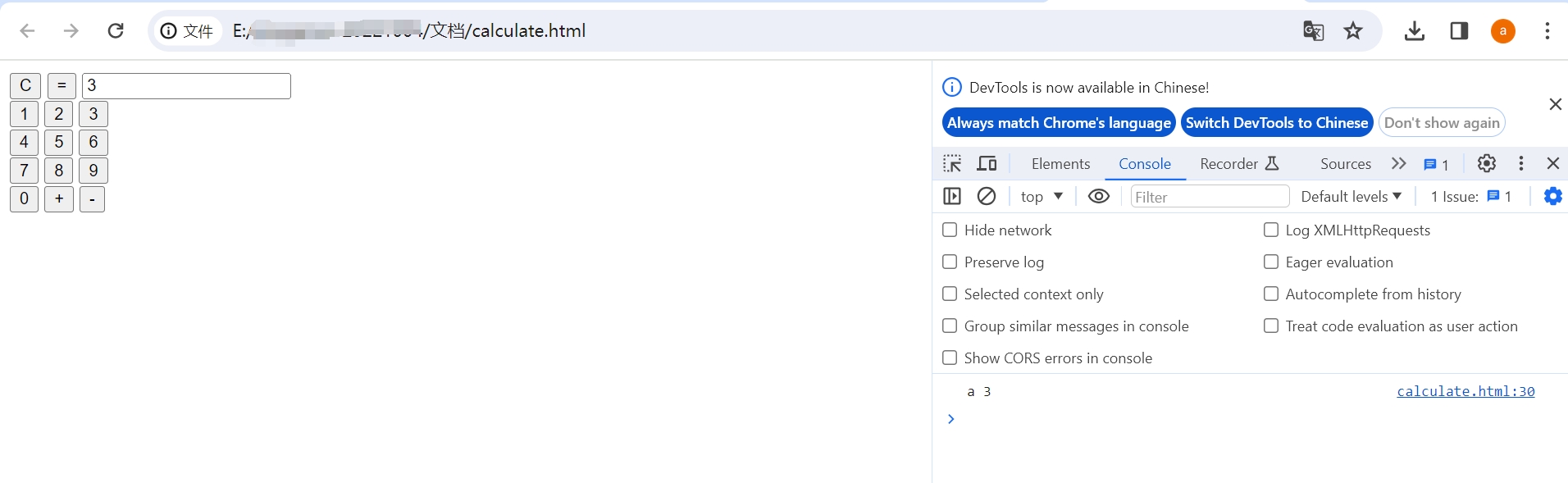
console.log() can print the variable values you want to check in the console, which is a commonly used tool for debugging code.