Project 2: Customer Management System
120021. Project Task Introduction
In the last class, we added a class management page to the existing 1table-crud project. In this class, we will continue by creating a page for customer management from scratch. First, we will use the 1table-crud project with the jianghu-init tool, and then generate the customer management page using the jianghu-init tool within that project.
2. Establishing the Customer Data Table
Open the database my_project with Navicat, and copy the following code in "New Query":
DROP TABLE IF EXISTS `customer`;
CREATE TABLE `customer`  (
  `id` int(11) NOT NULL AUTO_INCREMENT,
  `customerId` varchar(255) CHARACTER SET utf8mb4 COLLATE utf8mb4_bin NULL DEFAULT NULL,
  `customerName` varchar(255) CHARACTER SET utf8mb4 COLLATE utf8mb4_bin NULL DEFAULT NULL,
  `customerPhone` varchar(255) CHARACTER SET utf8mb4 COLLATE utf8mb4_bin NULL DEFAULT NULL,
  `operation` varchar(255) CHARACTER SET utf8mb4 COLLATE utf8mb4_bin NULL DEFAULT NULL,
  `operationByUserId` varchar(255) CHARACTER SET utf8mb4 COLLATE utf8mb4_bin NULL DEFAULT NULL,
  `operationByUser` varchar(255) CHARACTER SET utf8mb4 COLLATE utf8mb4_bin NULL DEFAULT NULL,
  `operationAt` varchar(255) CHARACTER SET utf8mb4 COLLATE utf8mb4_bin NULL DEFAULT NULL,
  PRIMARY KEY (`id`) USING BTREE
) ENGINE = InnoDB AUTO_INCREMENT = 1 CHARACTER SET = utf8mb4 COLLATE = utf8mb4_bin ROW_FORMAT = Dynamic;
This will generate the customer table:

3. Using the jianghu-init Tool to Generate Application Project
Before using the jianghu-init tool to generate the page, a project must first be created, so the first step is to create the 1table-crud project using jianghu-init.
4. Using the jianghu-init Tool to Generate Customer Management System Page
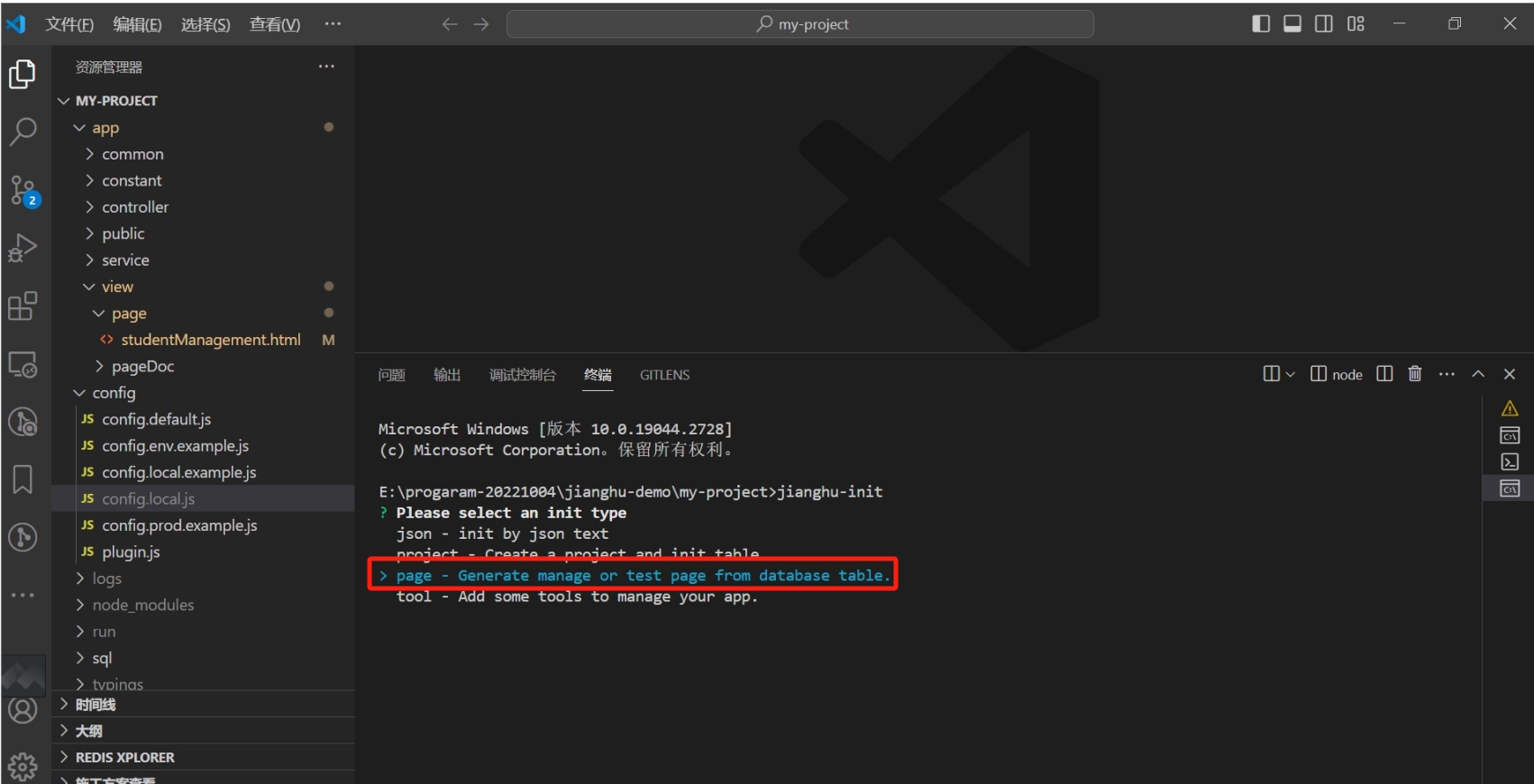
Then, within the project, run jianghu-init to generate the page, following the steps below one by one.
Select to generate a page:
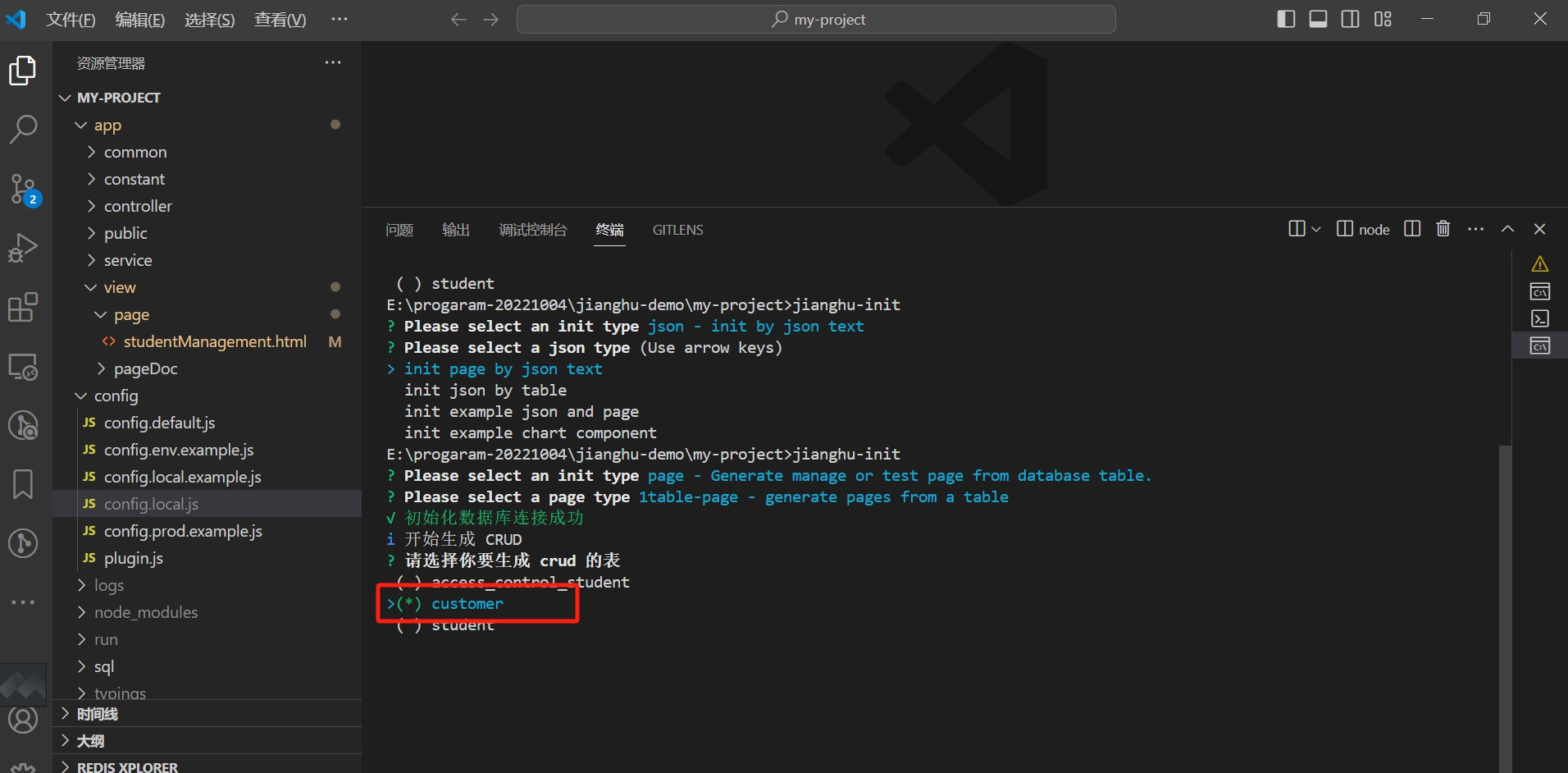
Choose to generate a page from a table:
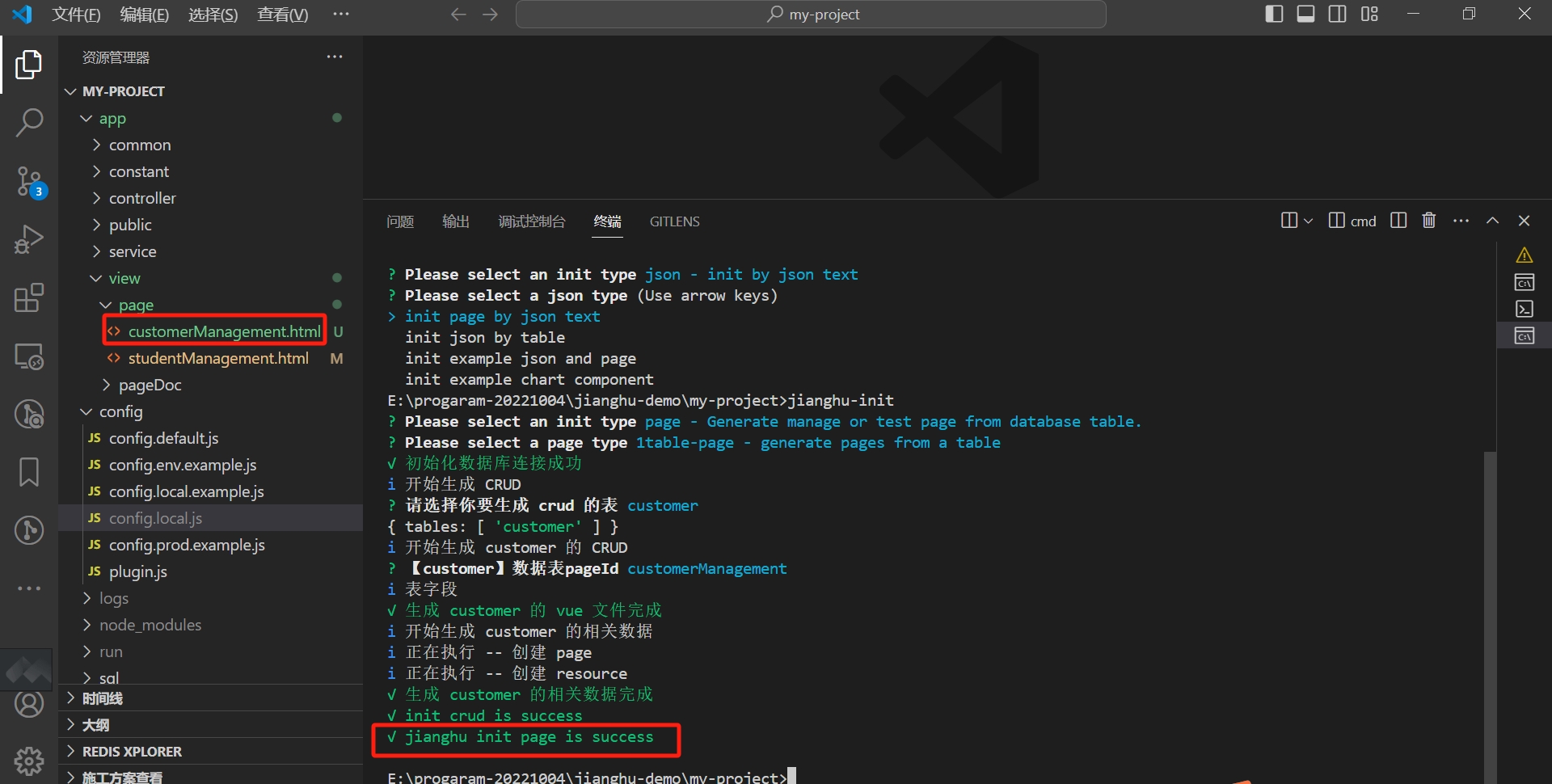
Select the customer table to generate customerManagement.html:
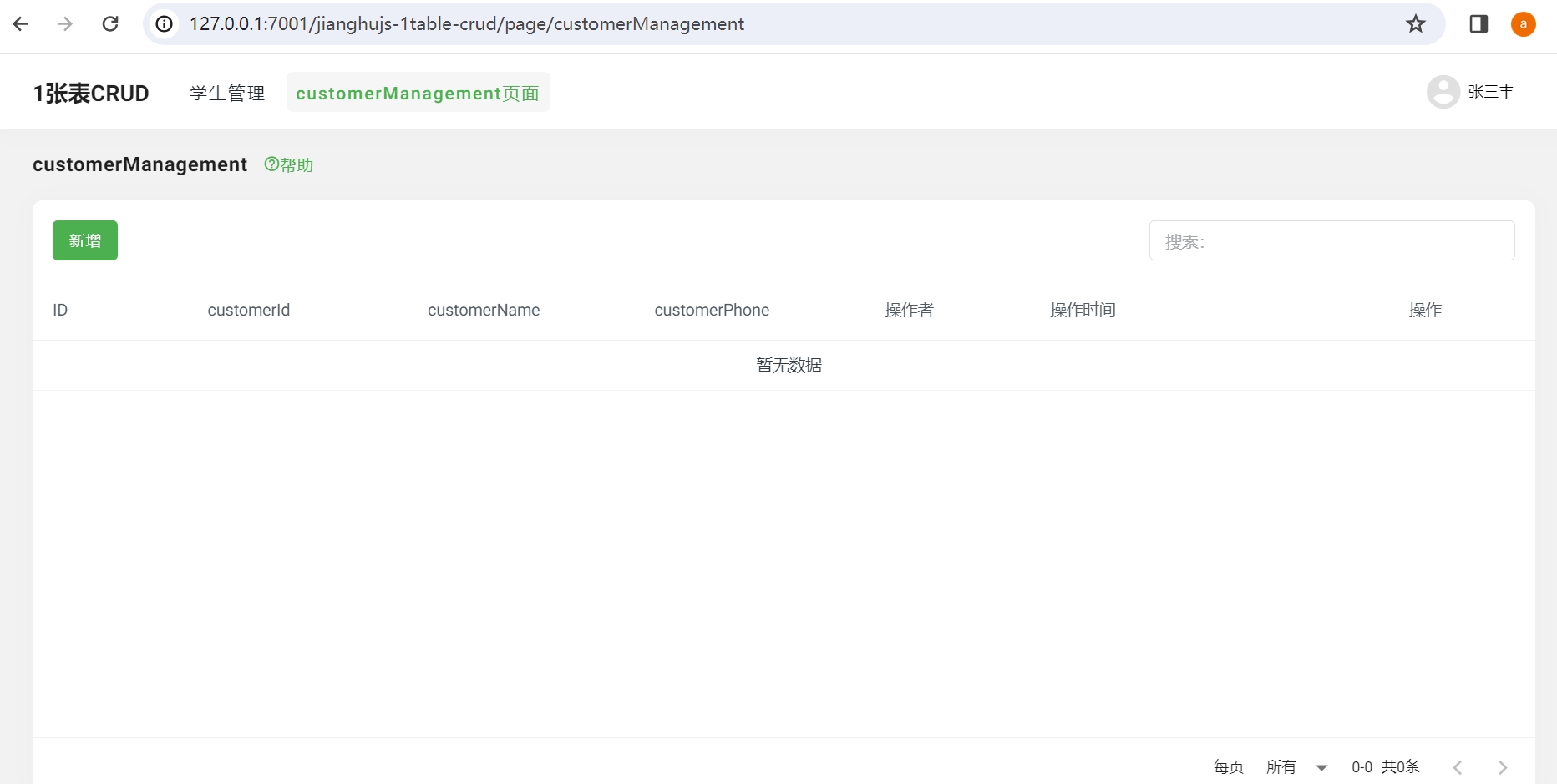
Start the project to see this page: