Building Step by Step (4): Modifying the Functionality of Data Table Components in VuetifyJS Using Slots
120021. Course Introduction
In the front-end page template code of the Jianghu JS framework, slots are a common yet often confusing part. This course will focus on how to read the code of slots and practice using slots to extend the functionality of data table components.
Through this course, you will gain a better understanding and application of slots, thereby enhancing your comprehension and operational skills regarding front-end page template code.
2. Introduction to VueJS Slots
In Lesson 002, you learned the basics of using VueJS slots, which allow you to insert content at specific locations within data components, thereby enhancing functionality. In this lesson, you will learn how to read the code of slots.
In the code of doUiAction.html, there are many pieces of slot code. Inside the table component v-data-table, the slot code is encapsulated by the following code:
<template v-slot:...>
  ......
</template>
Using doUiAction.html as an example to learn the code of slots:
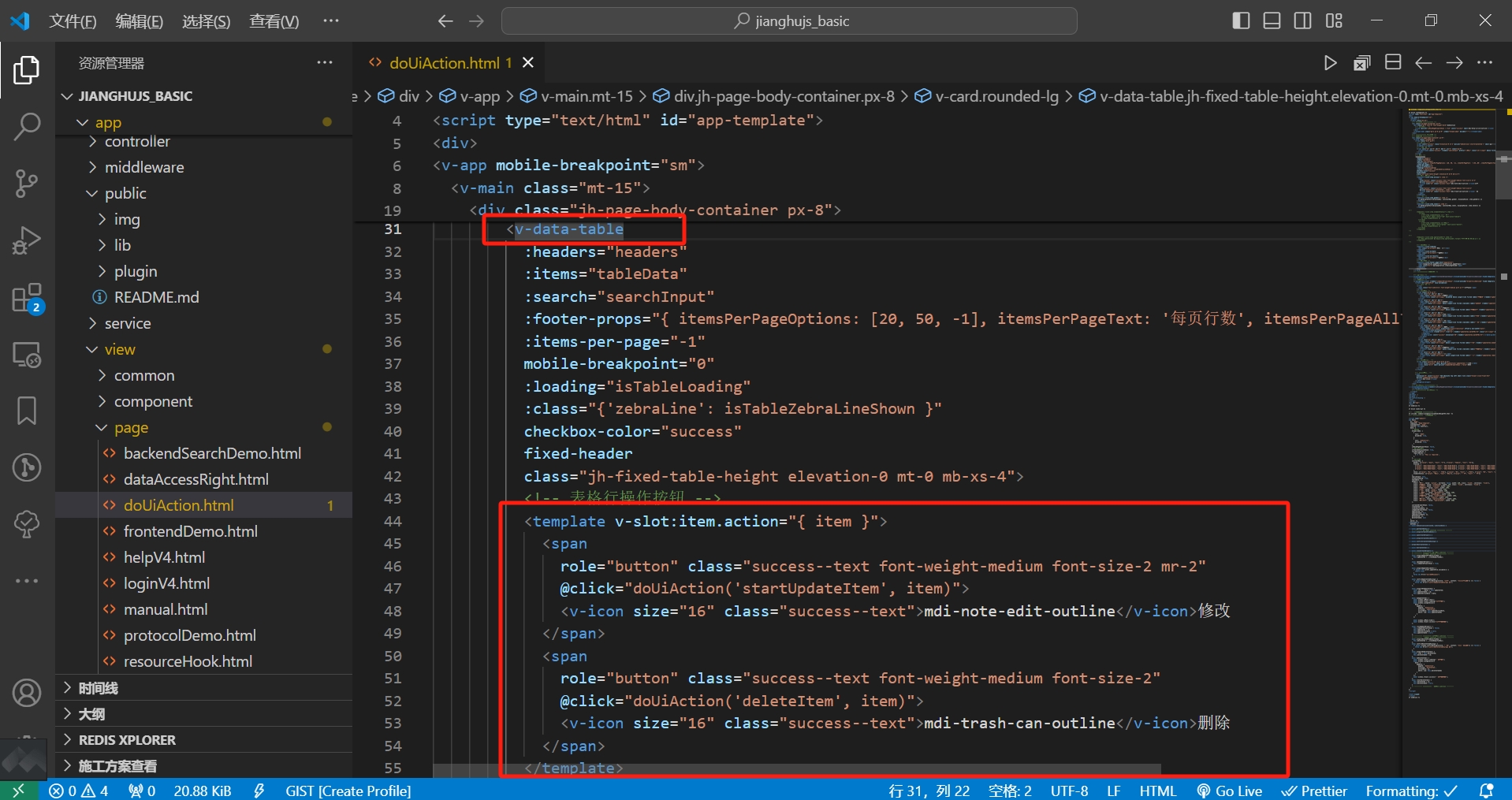
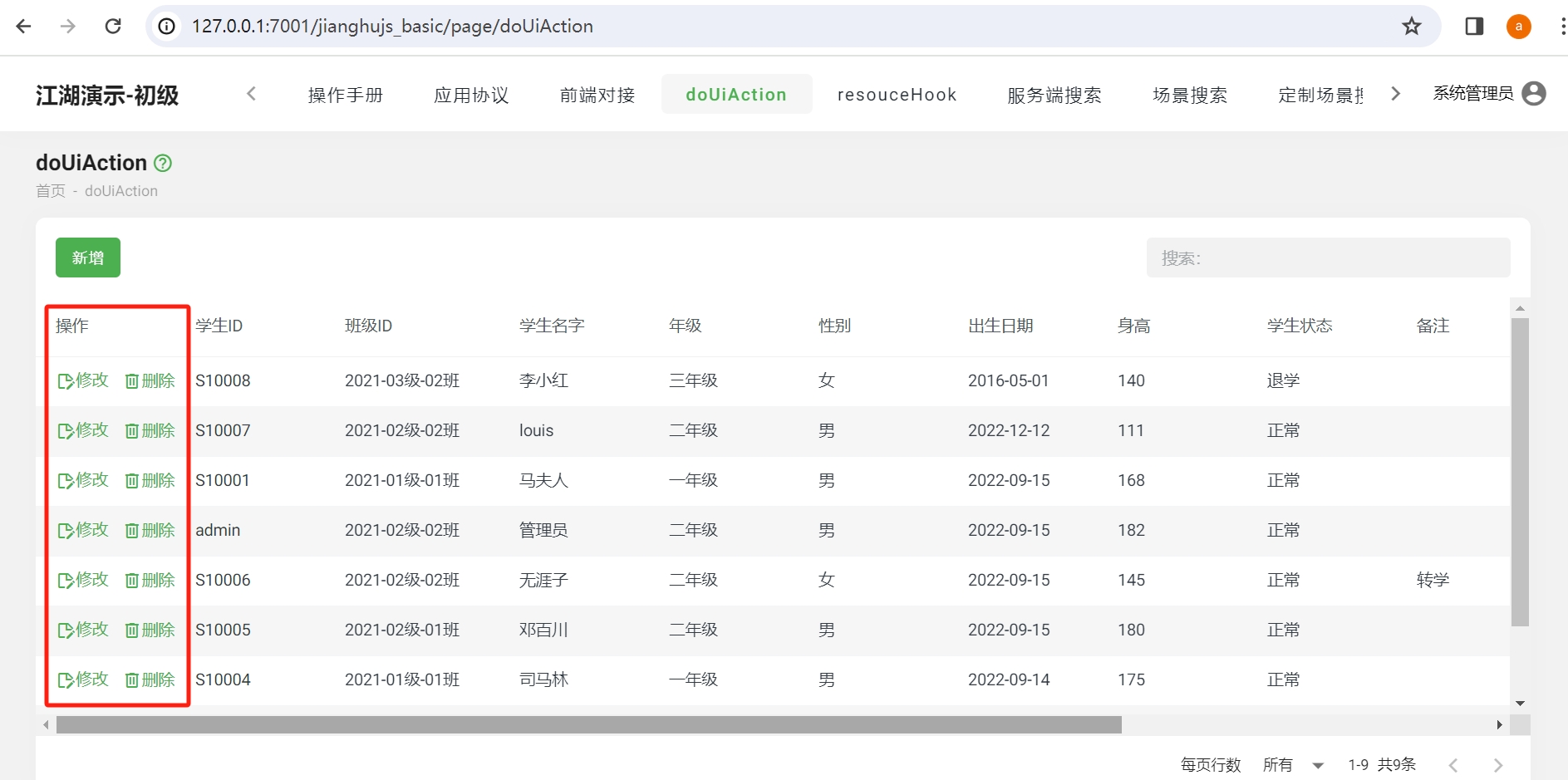
You can see that there is a piece of slot code inside the v-data-table component, which acts on the "action" column of the table. When you open the page in a browser, the "action" column has two buttons: "Modify" and "Delete." Thus, by using this slot, the "action" column of the data table has added two buttons.
Summary of slot syntax:
The code
<template v-slot:...></template>indicates that this is a slot, and the content of the slot is placed in a specific column of the table. The syntax for the column position isv-slot:item.XXX="{ item }". For example, in the above image, it is placed in the "action" column of the table, written as<template v-slot:item.action="{ item }">.The slot contains the page functionalities you need to add, such as buttons or modifying table displays. In the above image, two buttons, "Delete" and "Modify," have been added inside the table, and clicking the buttons calls functions.
3. Exercise: Adding a New Action Button to the Data Table
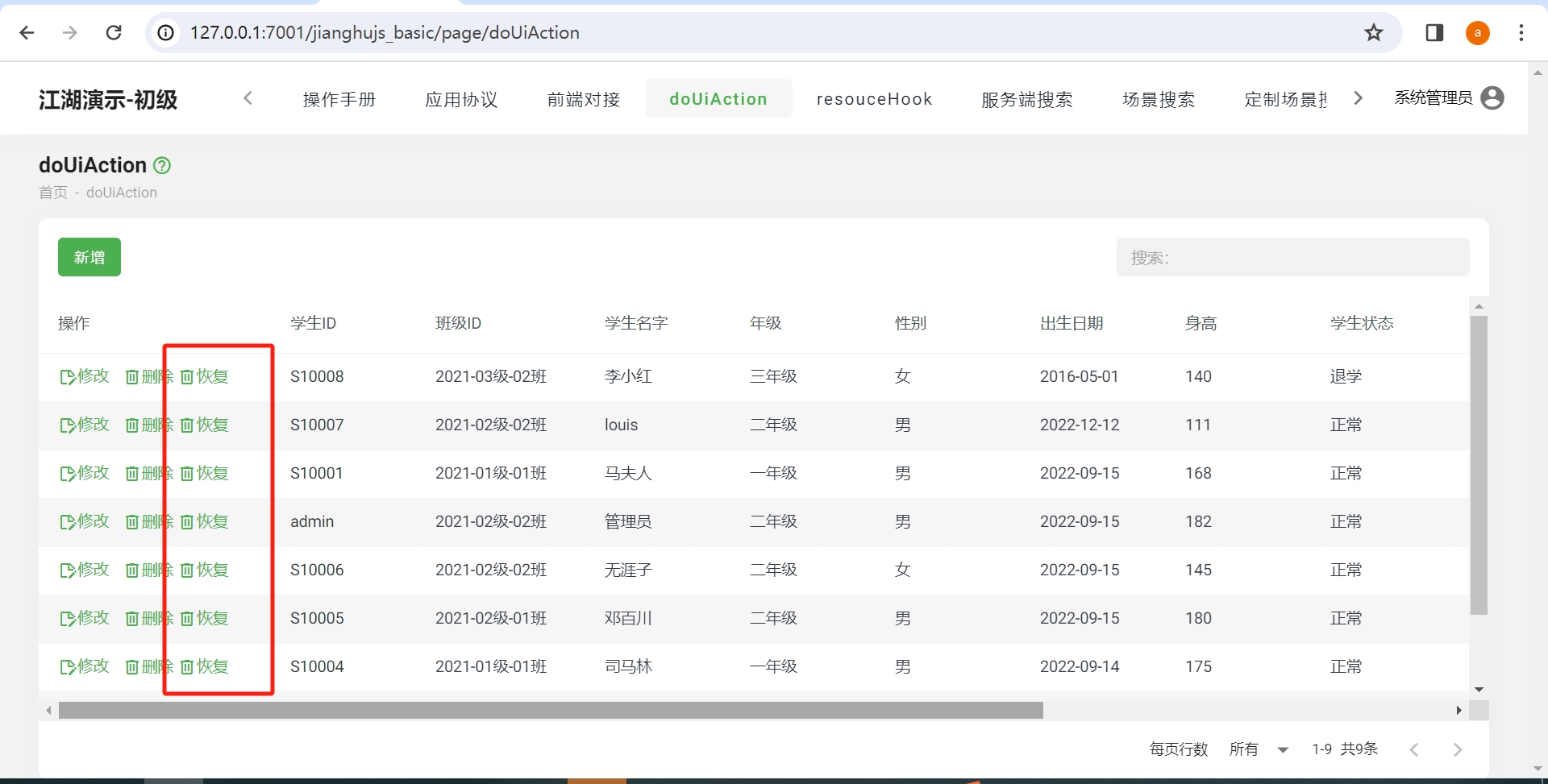
Try it out: Add a button named "Restore" to the "action" column of the data table on the doUiAction.html page by including the following code in the original slot:
   <span role="button" class="success--text font-weight-medium font-size-2">
     <v-icon size="16" class="success--text">mdi-trash-can-outline</v-icon>Restore
   </span>
Open the page in a browser to see the added "Restore" button:
4. Exercise: Formatting Time Display Using Slots
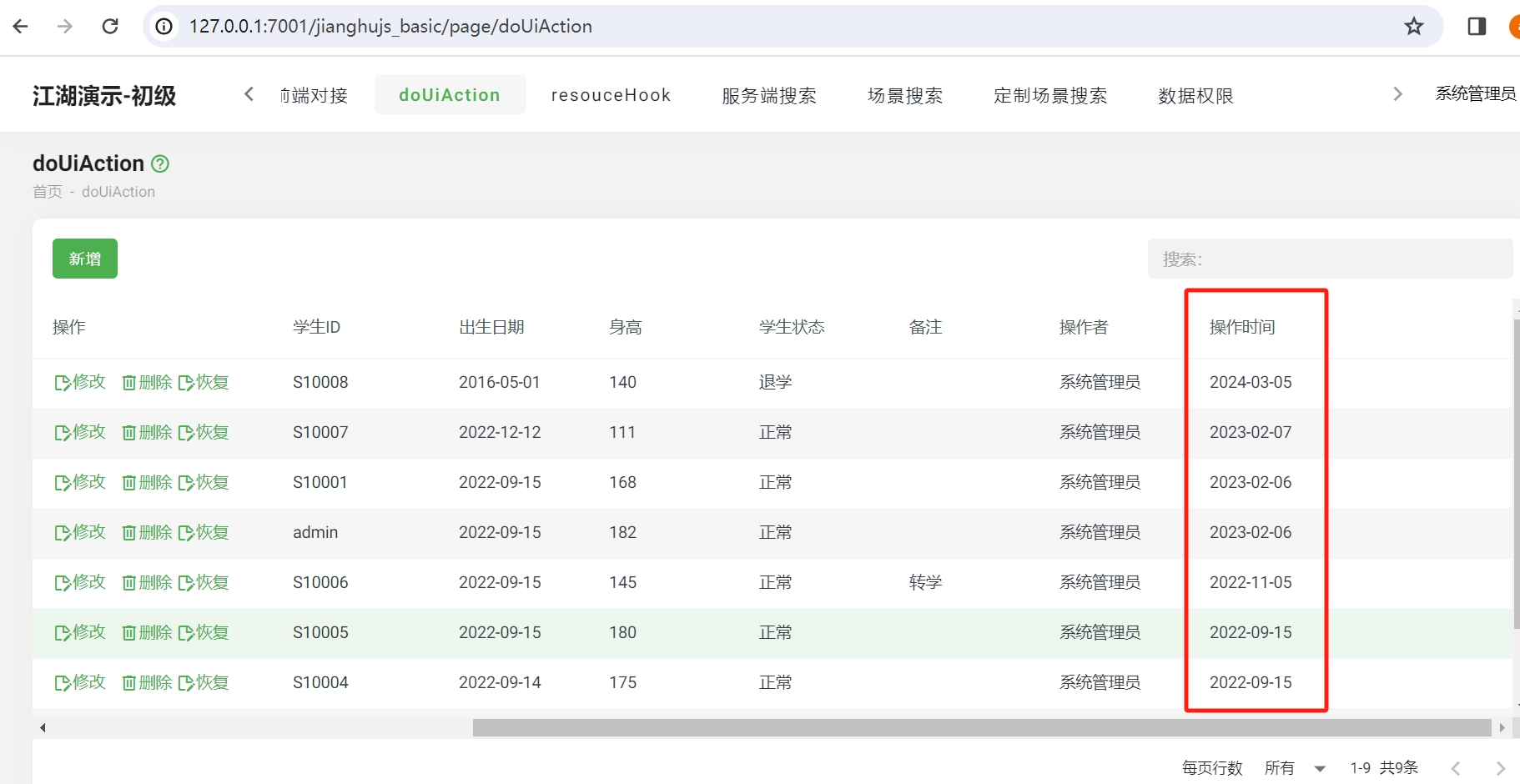
Try it out: Change the format of the "Operation Time" column in the data table on the doUiAction.html page to "YYYY-MM-DD" by adding the following code in the data table component:
 <template v-slot:item.operationAt="{ item }">
   {{ item.operationAt && dayjs(item.operationAt).format('YYYY-MM-DD') }}
 </template>
Open the page in a browser to see the "Operation Time" column formatted as "YYYY-MM-DD":
5. Exercise: Setting Cell Styles Based on Values
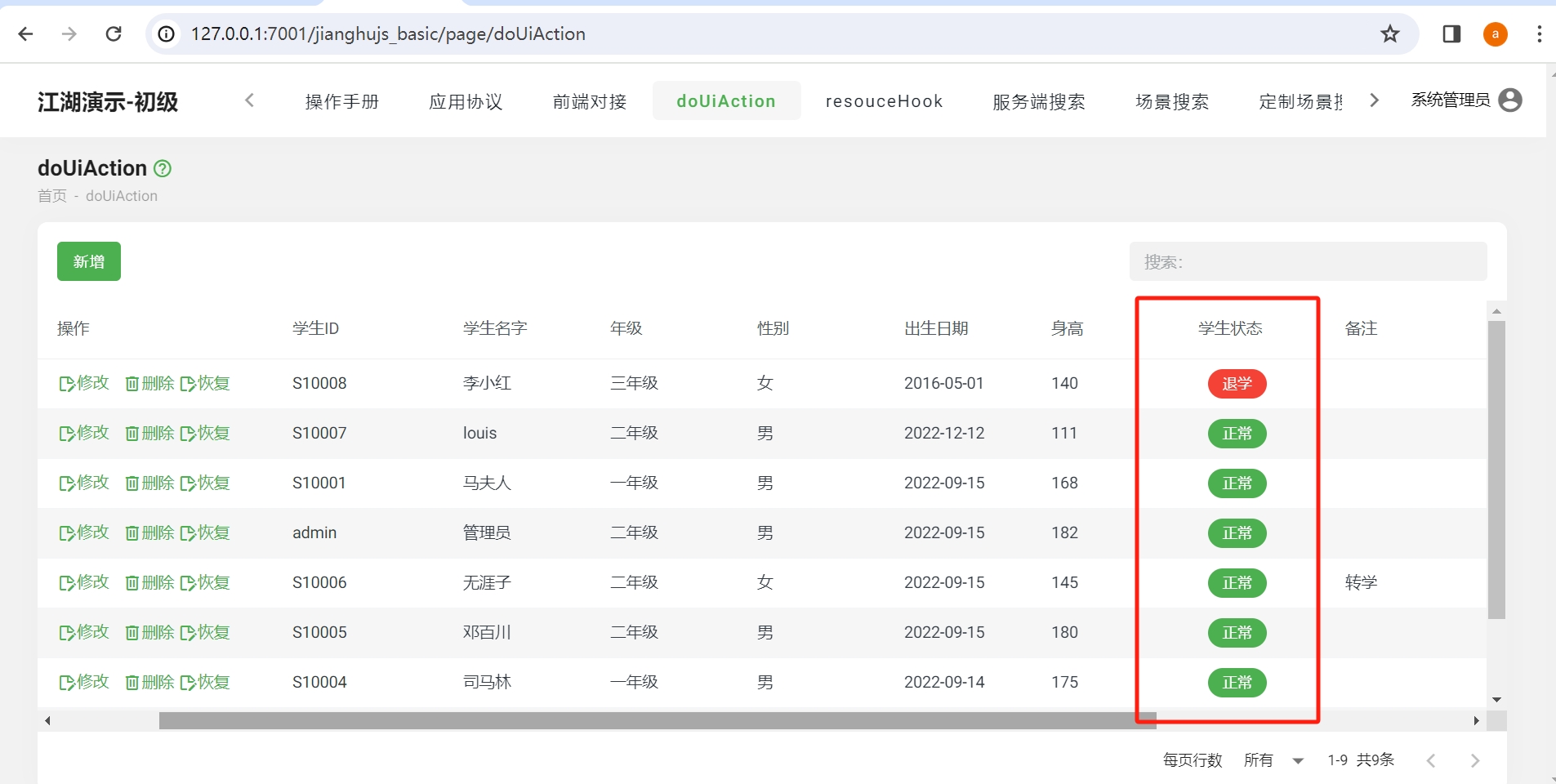
Try it out: In the doUiAction.html page, add a green chip for "Normal" and a red chip for "Dropped Out" in the "Student Status" column of the data table by including the following code in the data table component:
 <template v-slot:item.studentStatus="{ item }">
    <v-chip
      v-if="item.studentStatus ==='Dropped Out'"
      class="ma-2" small color="red" text-color="white">
        {{ item.studentStatus }}
    </v-chip>
    <v-chip
       v-if="item.studentStatus ==='Normal'"
       class="ma-2" small color="green" text-color="white">
         {{ item.studentStatus }}
     </v-chip>
  </template>
Open the page in a browser to see the "Student Status" column with "Normal" having a green chip and "Dropped Out" having a red chip: